
Once a page has been reviewed and approved, it can be published to the website.
Before publishing
In Pages, open the page you want to publish and complete a final review.
Confirm the following:
- Content has been reviewed and approved by the relevant stakeholder(s).
- Page title and headings are accurate.
- Images display correctly and have been optimised for web use.
- Internal and external links are working correctly.
- Downloadable documents are accessible and linked correctly (if applicable).
- Components display as intended.
- Page properties, metadata, and tags have been completed.
- Content has been proofread for spelling, grammar and formatting.
- Page complies with brand, accessibility and content standards.
Publishing the page
- Open the page in Sitecore Pages.
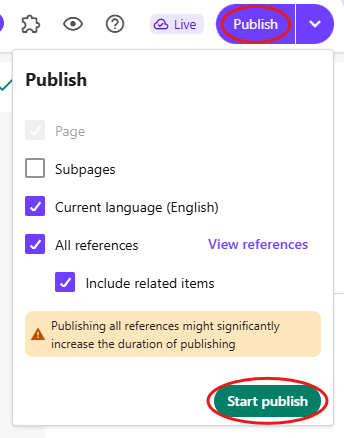
Click Publish from the top toolbar. Make sure the boxes ticked match the screenshot below and click Start publish.
- Once the page successfully publishes, open the page on the website to verify if:
- The page loads successfully.
- All content is displaying correctly.
- Images render correctly and are not cropped or distorted.
- Internal and external links function as intended.
- Documents can be downloaded (if applicable).
- Components display correctly.
- Formatting and spacing are correct.
- Metadata has been applied correctly.
- The page displays correctly on desktop, tablet and mobile devices.
- For articles: If the article is intended to appear within Featured news – manual components, navigate to the page containing the component and confirm that the article has been added to the component's content source. Refer to the guide for changes within the component.
- After publication, verify that the article is displaying correctly across both the operating company (OpCo) website and the CIMIC Group website, where applicable. As news content from OpCo websites may feed through to the CIMIC website, it is important to confirm that content remains consistent across both locations. Review the following:
- Hero/banner image is displaying correctly
- Thumbnail image is displaying correctly
- Headline is consistent
- Publication date is correct
- Links direct users to the correct article
Periodically revisit the article after publication and verify that both the OpCo and CIMIC website versions remain consistent. Regular checks help identify any publishing, image, tagging, or content synchronisation issues that may impact how the article appears across websites.
Important: Publishing is not considered complete until the article has been verified on both the originating OpCo website and the CIMIC Group website (where applicable). Always confirm that images, content, and article details are displaying consistently across both locations.
- After publication, verify that the article is displaying correctly across both the operating company (OpCo) website and the CIMIC Group website, where applicable. As news content from OpCo websites may feed through to the CIMIC website, it is important to confirm that content remains consistent across both locations. Review the following:
- Depending on the page type, additional updates may be required after publication:
- Confirm the page appears in website navigation (if applicable).
- Verify the page is appearing within search results.
- Check that page listings, cards and promotional components have been updated.
- Validate related content links and featured content components.
- Confirm redirects are functioning correctly if URLs were changed.
Publishing a page through Sitecore Content Editor
Some content items, landing pages and structural website changes may be managed through Sitecore Content Editor rather than Page Builder.
- Navigate to the content item within Content Editor.
- Select the item you wish to publish.
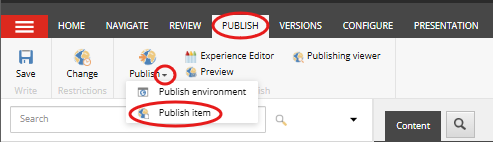
Click Publish from the ribbon and select Publish item.
- Select the appropriate publishing option:
- Smart Publish – Publish differences between source and target database.
Republish – Publish everything.
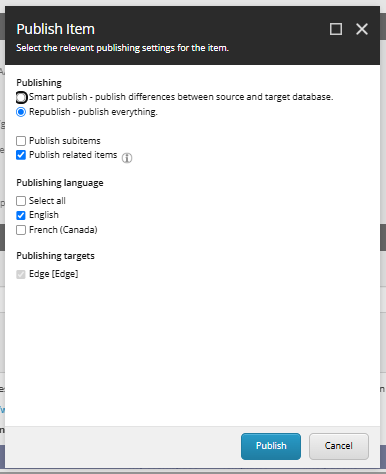
- Confirm the publishing target is correct.
- Click Publish to start the publishing process.
Post-Publishing Validation
Once publishing is complete:
- Confirm the item appears on the website.
- Verify associated pages render correctly.
- Check related components and content listings.
- Confirm new content appears within search and filtered listings where applicable.
- Verify links, images and downloadable files.
- Confirm URL structure and page routing function correctly.
Troubleshooting
If changes are not appearing after publication:
- Refresh the website and test using an incognito browser session.
- Confirm the correct item was published.
- Verify the item is in the correct workflow state.
- Check whether associated datasource items also require publishing.
- Confirm media items have been published.
- Review publishing restrictions and dates.
- Escalate to Marvis Nguyen if issues persist.