
Each time you create a new page, you must complete the relevant page properties and metadata fields to ensure that accurate information is displayed in website search results, social sharing previews, and other areas where page information is surfaced.
To update the page properties and metadata for a page:
In Pages, click on a page you want to edit and click on the 3 dots to open Page content.
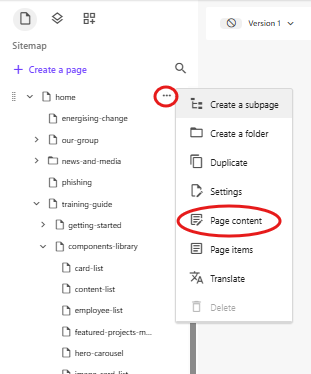
- Fill in the fields as described in the table:
Section | Field | Description / Comments |
|---|---|---|
OpenGraph This content is used in the website search results and also displayed on Social Share platforms that use OpenGraph. 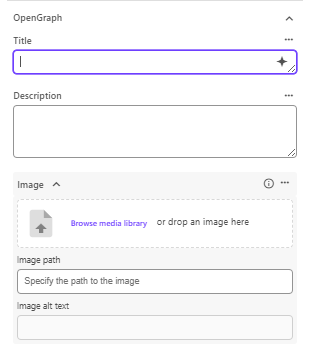 | Title | The page title |
Description | A short description of the page to appear on web search engines. | |
Image (thumbnail) | Image size: 800 x 590 (px) Format: PNG or JPG Ensure you add ALT text for the image | |
Navigation 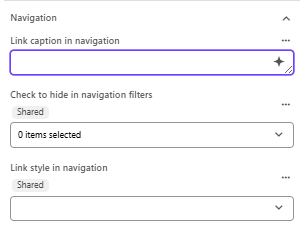 | Check to hide in navigation | Only the Sitemap checkbox is valid. Tick the checkbox to hide the page from Search Results |
Link caption in navigation | Automatically populated when a page is created.
Make sure to populate this with the same name as the page as it appears on the top of the page.
 | |
Properties - GeoLocation | Latitude | Applies to Project and Case study pages |
Longitude | Applies to Project and Case study pages | |
Properties This content is used to populate the Details section on a project, case study or news page | Date published | Applies to Projects, Case study, and News pages |
Sector | Applies to Project pages only, this field is multi select | |
Location | Applies to Project pages only | |
Client | Applies to Project pages only | |
Status | Applies to Project pages only | |
Company | Applies to Project, Case study, and News pages | |
Region | Applies to Project pages only | |
Contract type | Applies to Project pages only | |
Expertise | Applies to Project and Case study pages | |
Page meta properties This content is used for SEO. 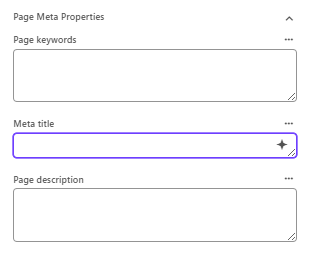
| Page keywords | Enter the relevant keywords for the page, separating each with a comma |
Meta title | Page title | |
Page description | A short description of the page to appear on web search engines. |
3. Publish your changes.
Tagging a page
Tags are generally used for the site global search, projects search, news search, and case studies search.
Each page will have a tags field to select the tags from, and this step has to be done in Content Editor.
- Navigate to Content Editor.
- Select the page that requires tagging.
- Scroll down the page to the Tagging section.
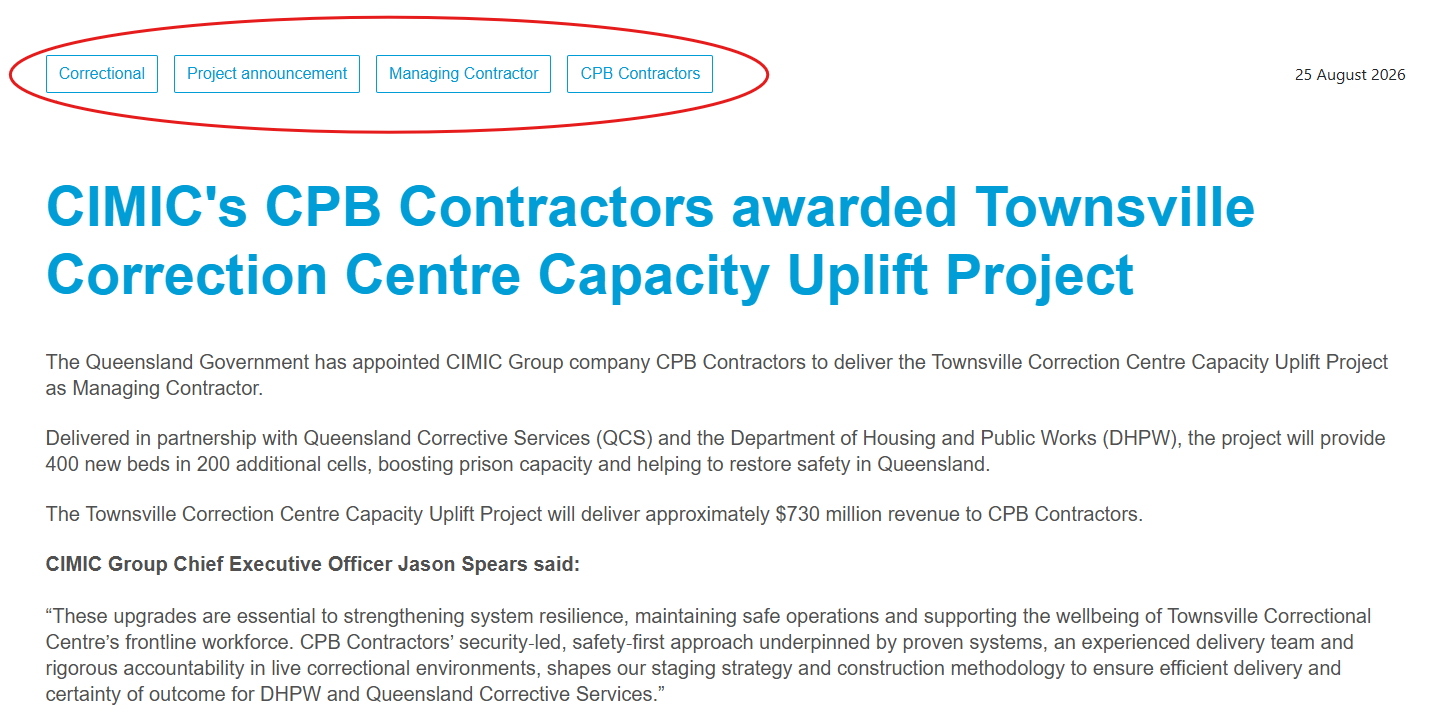
Displaying page tags
Tags are only displayed for on the News, Projects, and Case study pages. Tags are hidden on normal content pages.
Meta NoIndex
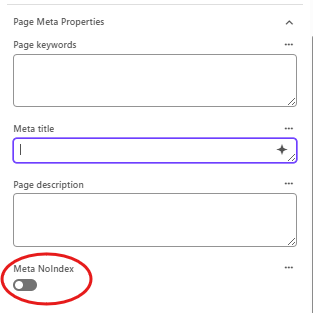
To hide a page from site search and prevent search engines from crawling the page, you can use the Meta NoIndex function.
In Pages, navigate to the page you want to remove from site search and click on the 3 dots to get to Page content.
Scroll down to Page meta properties and tick Meta NoIndex.
- Save and publish the page.
| Note: Google usually takes a few days to index and de-list the page from their search results. |