
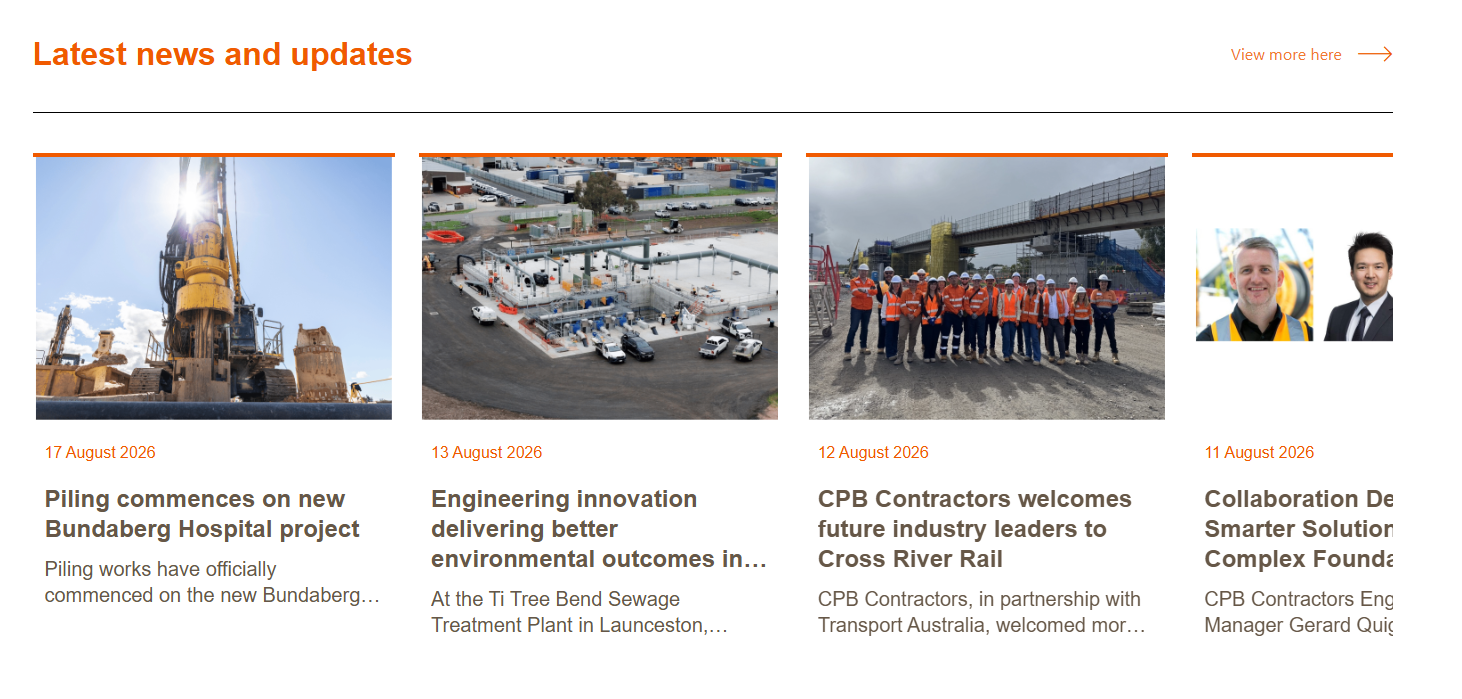
The Featured news - manual component is used to feature a manual selection of news on a page.
- In Pages, navigate to the page you want to add the component to.
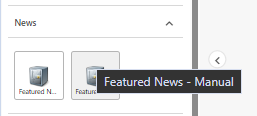
From the Components panel, drag and drop the News > Featured news - manual component into the Main container on the page, or click on the + icon in the Main container and select the Featured news - manual component from the popup window.
In the Assign content item window, click once on the last (if there are multiple) data folder in the tree to select it, then click + Create new.
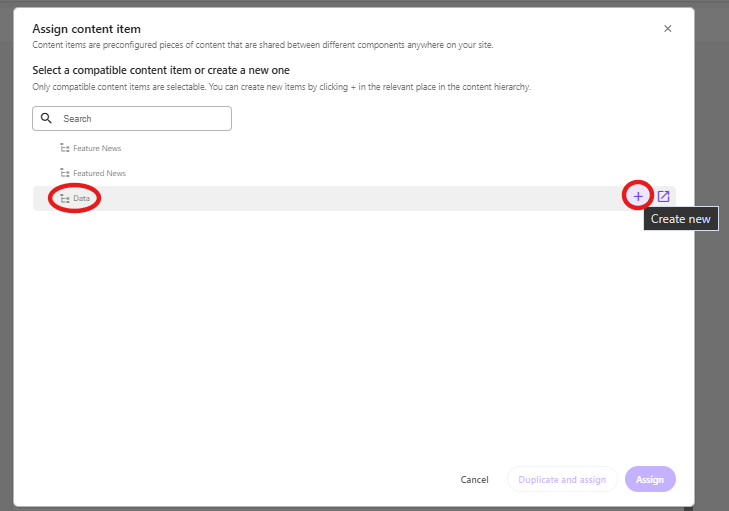
Note: You may see 3 data folders in the Assign content item window.
- First data folder: Site data. The data items in this folder are available for use on any page across your group site only.
- Second data folder: Shared data. The data items in this folder are available for use on any page across any group site.
- Third data folder: Local data. The data items in this folder are available for use on the current page only.
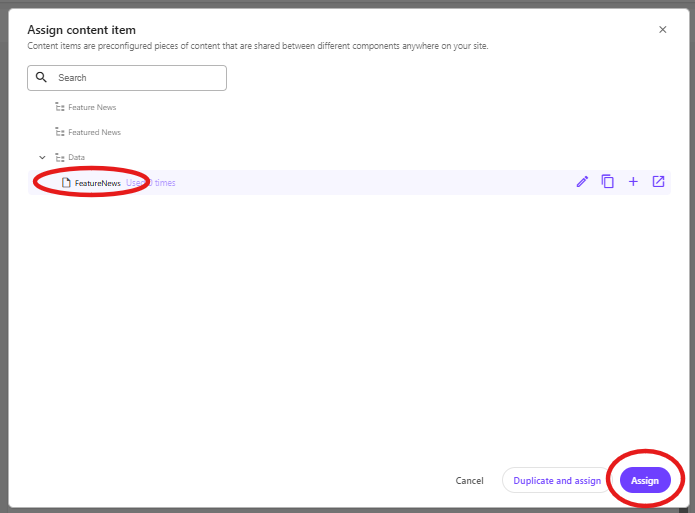
Click on FeaturedNews to create a data source and then type the name for the new content item without clicking on the data source itself. Press enter once you have finished typing the data source name and click Assign.
- The new data source will appear on the page. To update the content:
- click on the Featured news title and change if required.
- click on the View more page link field and update the link properties.
- Apply any advanced styling options for this component. Advanced style options appear in the right-hand panel for each component. The table below describes the options available for this component.
Style | Description |
|---|---|
Themes | To apply a theme, refer to: |
Is Contained | By default, the component will display full width. If you want to add padding on the left and right of the component, tick the Is Contained checkbox |
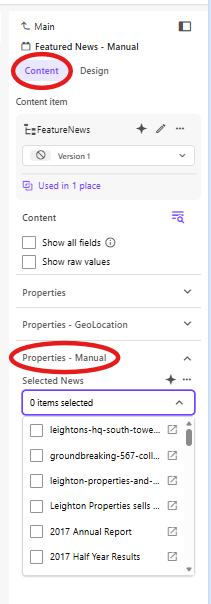
7. Navigate to the right-hand panel, and in the Content section, go to the Properties - manual part to select the news items you want to display in the component.
8. Publish the page.