Project pages are created using the Project detail page template and are used to showcase individual projects across the website.
Setting up the page
The Project detail page can only be created under the parent Projects / <Year> page. To create a new projects page:
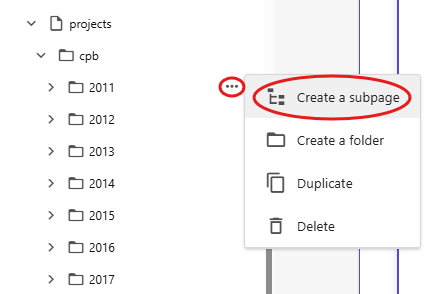
In Pages, hover over the parent Projects / <Year> folder and click on the 3 dots to display a menu with options. Select Create a subpage.
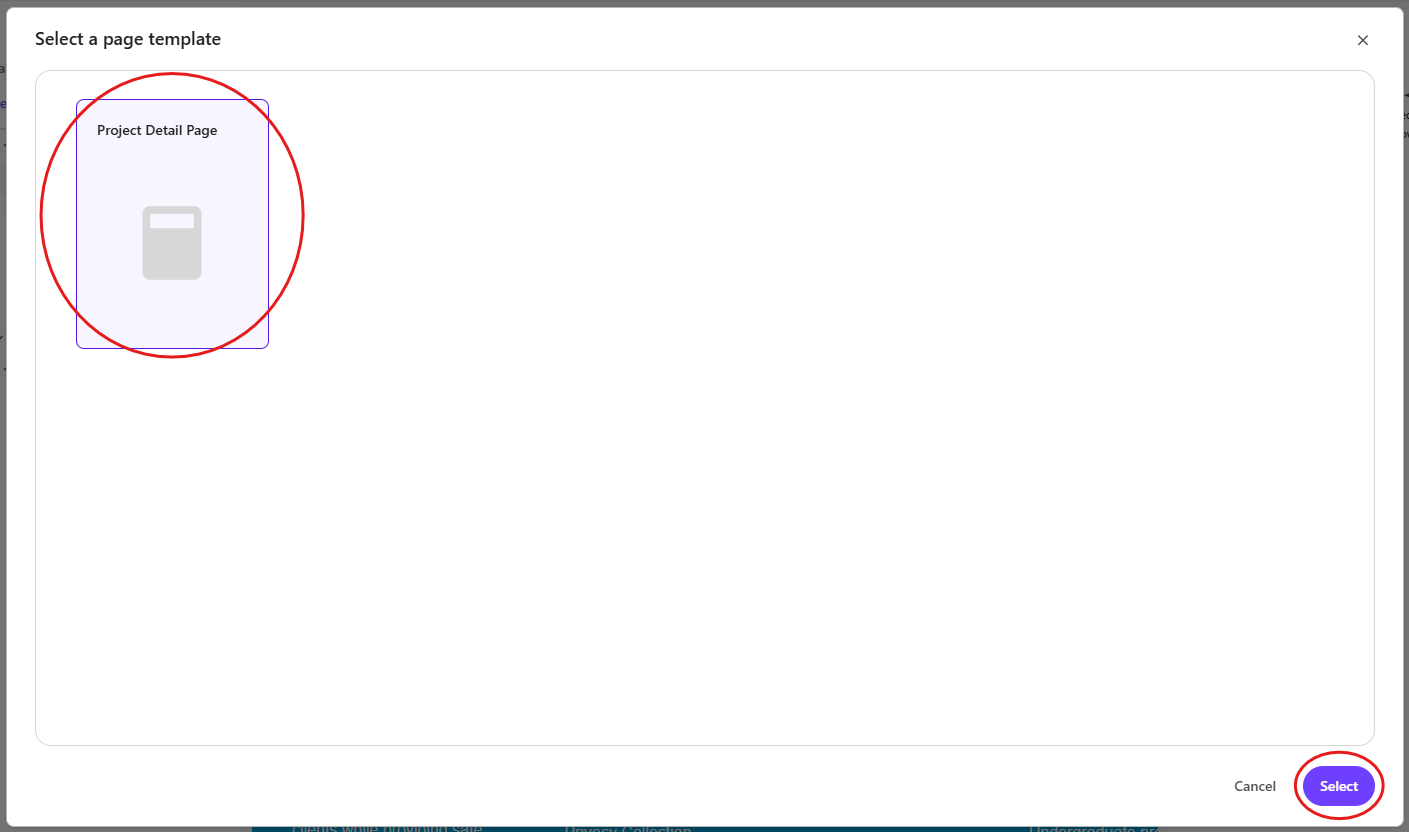
In the Select a page template window, click on the Project detail page template and click Select.
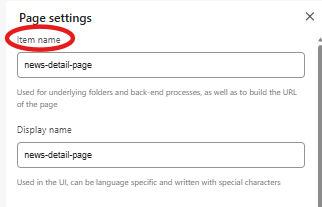
- Enter a name for the new page, using alphanumeric characters only. Spaces in page names will be replaced with a dash, and uppercase letters will change to lowercase. e.g. If you type Blackwater Gold Project as the page name, after you press enter, the format will change to blackwater-gold-project.
The new page will load, and if you wish to change the page URL to be different to the page display name, click the 3 dots next to the page, select Settings, and edit under Item name.
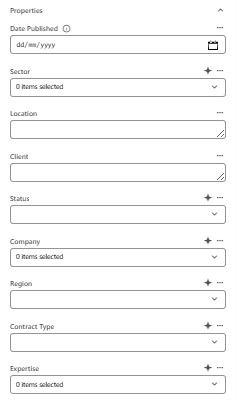
- Enter page properties and metadata in Page content and assign the relevant content. Please refer to our guide for steps on how to do this.
Create a project page
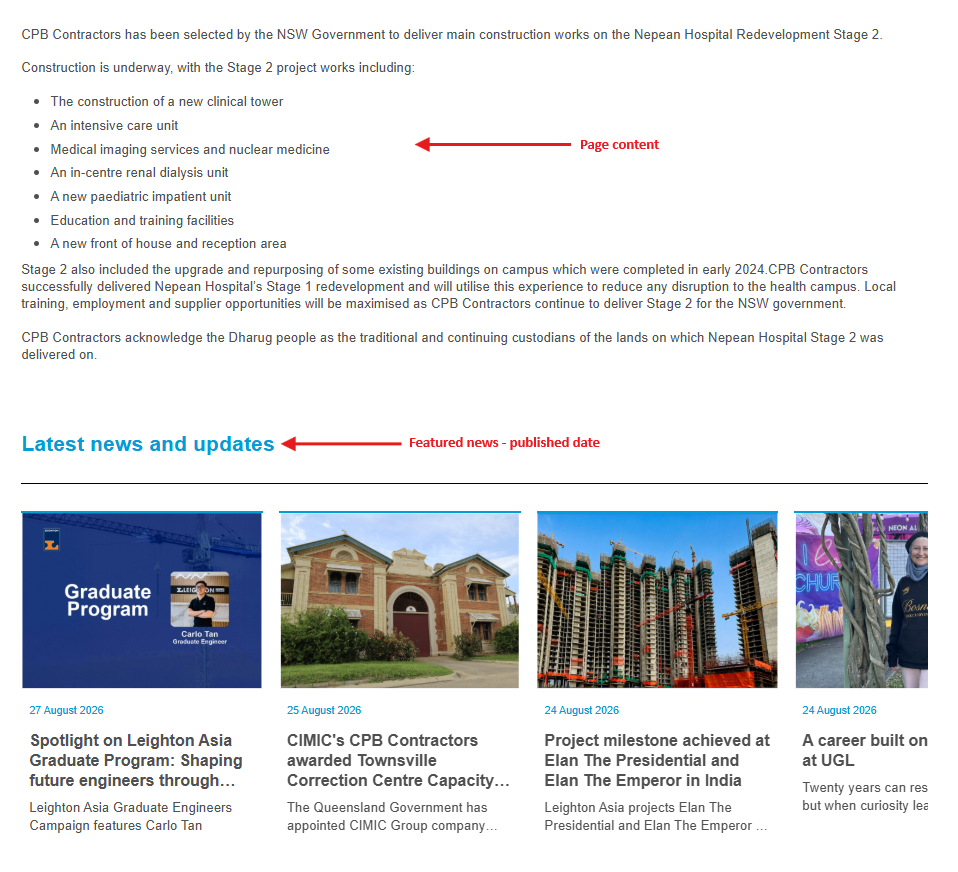
Once the page has been created, begin removing some of the pre-loaded components as seen in these screenshots.
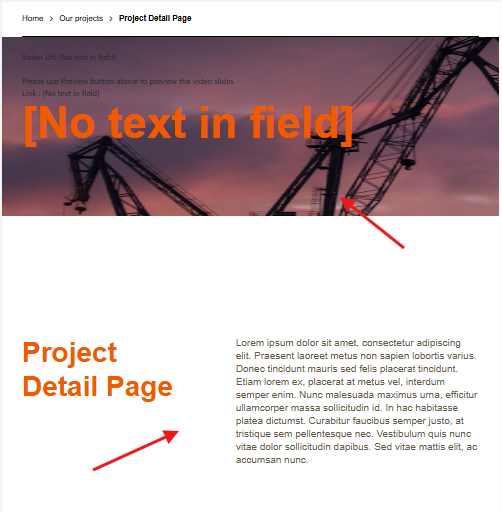
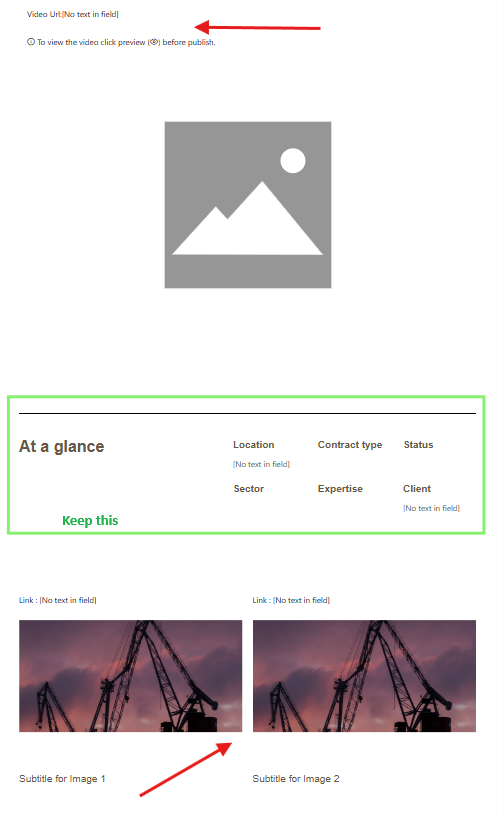
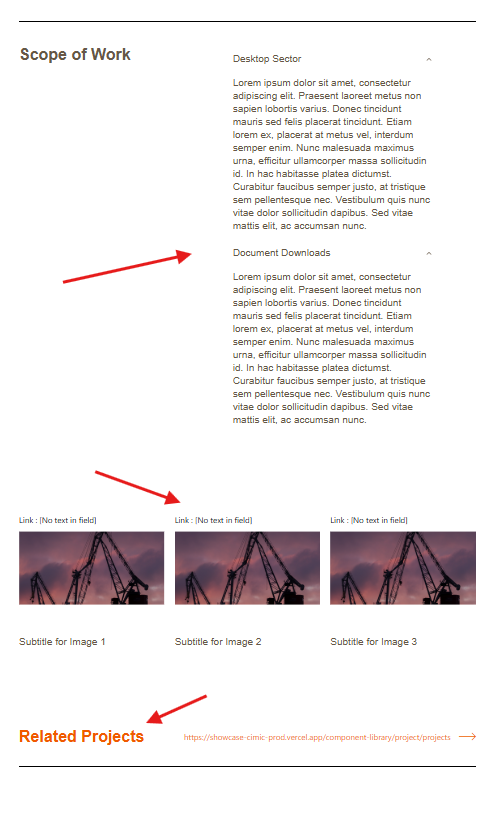
- Populate the page with the recommended components (or OpCo-specific components) and approved project information where applicable, include:
- Project name
- Project details (Location, Contract type, Status, Sector, Expertise, and Client)
- Scope of works
- Key achievements
- Supporting images
Related documents (if any)
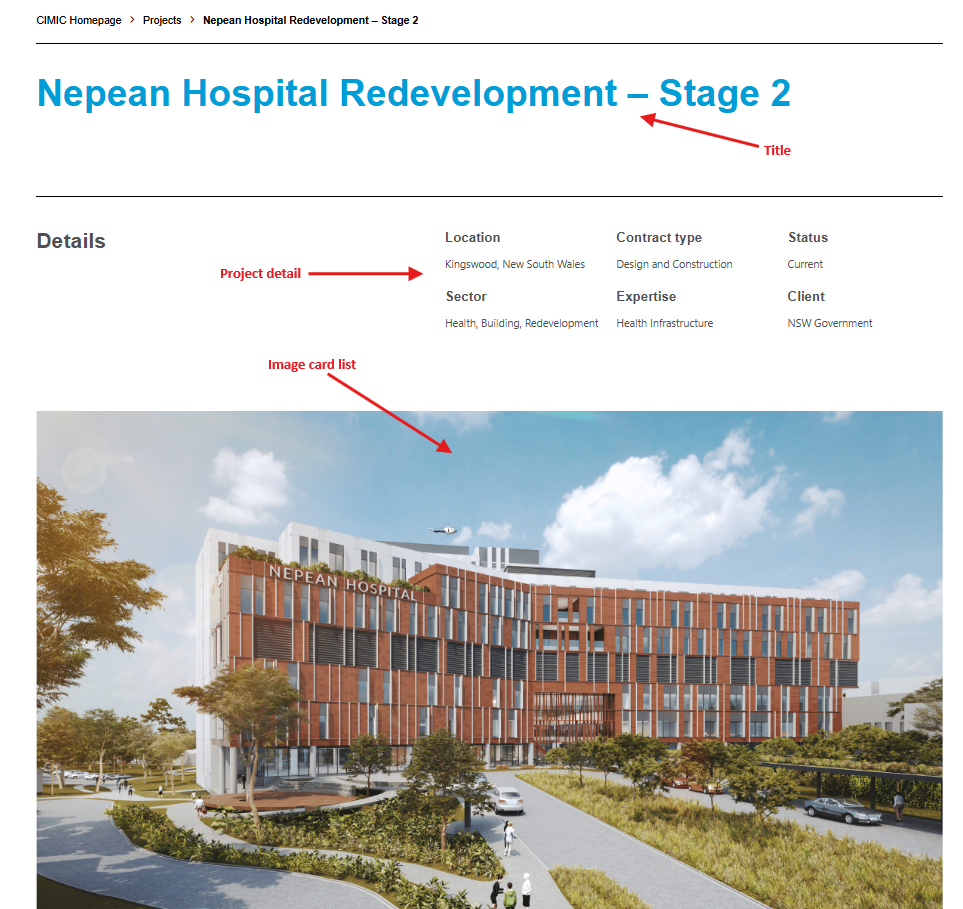
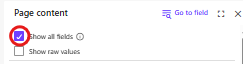
To update the project detail component, navigate to the page on the left-hand panel and click the 3 dots and select Page content. Tick Show all fields for the Properties section would appear. Select the appropriate information for the project.
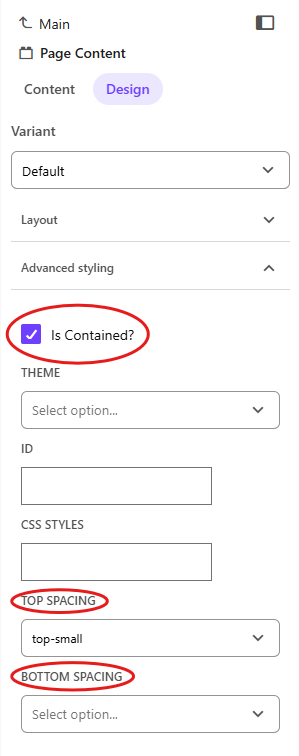
Go to the right-hand panel for the Advanced styling dropdown, and align all components in the page following below:
- Title: Top and bottom small
- Project detail: Top none, bottom small
- Image card list: Top and bottom small
- Page content: Top and bottom small
- Featured news: Top small, bottom blank
Make sure to tick Is Contained? for all components, as it helps maintain clean component isolation in the page.
To add images:
- Upload the image to the media library if it has not already been uploaded.
- Add the Image card list component or select an image field within an existing component.
- Select the image from the Media library.
- Save your changes.
Recommended image sizes should follow the image specifications.
Thumbnail: 800x590 pixels
Hero/Banner Image: 2400x1350 pixels- To add downloadable documents:
- Upload the document to the media library.
- Add a hyperlink to the page.
- Link the text to the uploaded document.
- Complete the page information and settings. Refer to Page properties, metadata, and tags for detailed guidance.
- Preview the article by clicking the Eye icon in the top toolbar to confirm if all components, documents, and images are showing up correctly.

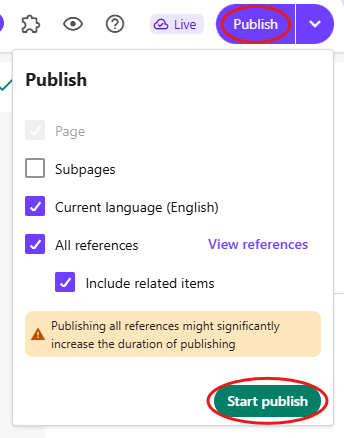
9. Publish the page.