
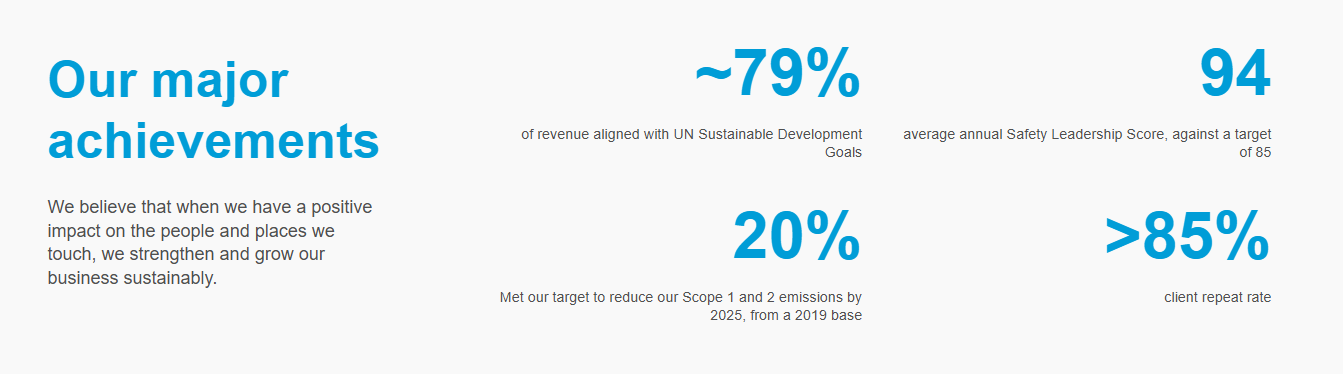
The Stats component is used to display content as follows:
Add a statistic
- In Pages, navigate to the page you want to add the component to.
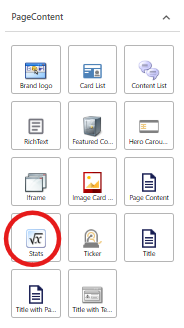
From the Components panel, drag and drop the PageContent > Stats component into the Main container on the page, or click on the + icon in the Main container and select the Stats component from the popup window.
In the Assign content item window, click once on the last (if there are multiple) data folder in the tree to select it, and click + Create new.
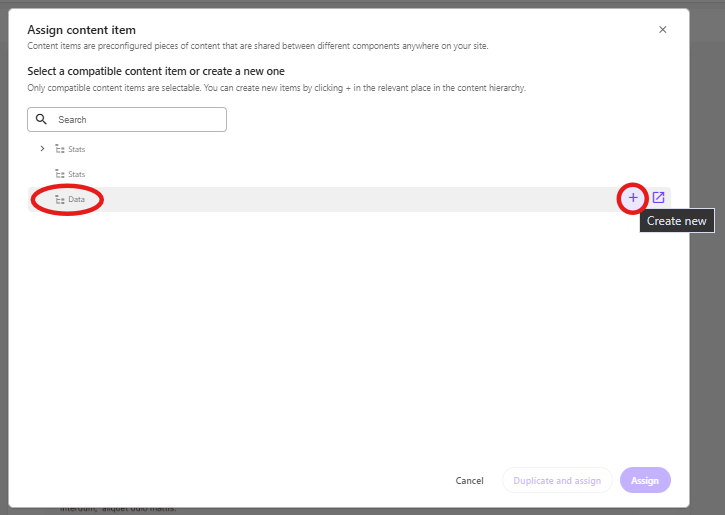
Note: You may see 3 data folders in the Assign content item window.
- First data folder: Site data. The data items in this folder are available for use on any page across your group site only.
- Second data folder: Shared data. The data items in this folder are available for use on any page across any group site.
- Third data folder: Local data. The data items in this folder are available for use on the current page only.
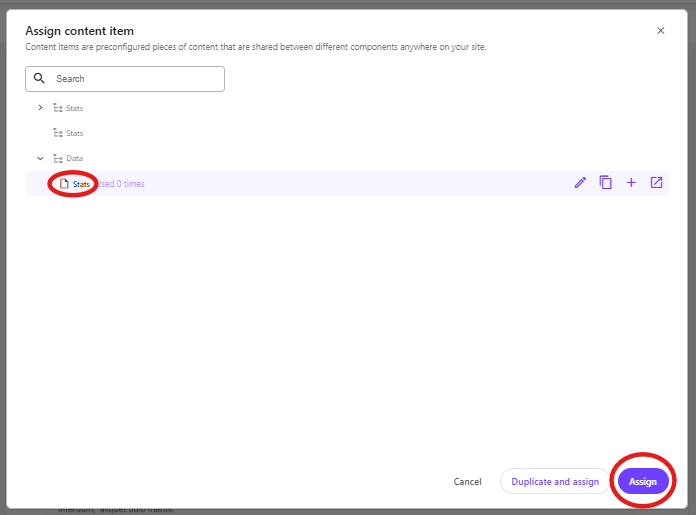
Click on Stats to create a data source and type the name for the new content item without clicking on the data source itself. Press enter once you have finished typing the data source name and click Assign.
- The new data source will appear on the page. To update the content:
- Click on the title field and enter a title.
- Click on the description field and enter a description.
- Click on the link field and enter a link label and URL in the right-hand panel
The next step is to add stats to the component. Click on the stats component to reselect it and reset the right-hand panel so that it displays the component options. To add a stat, click on Manage items > + Add new from the right-hand panel, and select StatsStatistics.
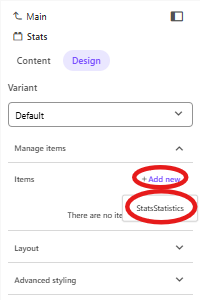
- Enter a name for the item and press enter. The page will refresh and you will see 2 new placeholders appear within the component.
To update the content:
- Click on the first [No text in field] placeholder and enter the statistic value (e.g. 86%)
- Click on the second [No text in field] and enter a short description (e.g. “repeat client rate”)
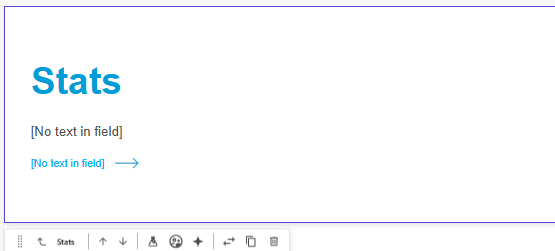
- Repeat steps 6-8 for additional stats you want to add into the component.
- Apply any advanced styling options for this component. Advanced style options appear in the right-hand panel for each component. The table below describes the options available for this component.
Style | Description |
|---|---|
Themes | To apply a theme, refer to: |
Is Contained | By default, the component will display full width. If you want to add padding on the left and right of the component, tick the Is Contained checkbox |
11. Publish the page.
Delete a statistic
To delete a statistic:
- Click on the Stats component on the page to select it.
- From the Stats panel on the right, expand Manage items.
- Hover over the item you want to delete and click on the 3 dots.
- Select Delete.
- Publish the page.
Reorder statistics
To reorder statistics:
- Click on the Stats component on the page to select it.
- From the Stats panel on the right, expand Manage items.
- Click and drag the items into the order you want them to appear.
- Publish the page.