LinkedIn

Subscribe to our news

CIMIC
  • Our Group
  • Projects
  • Innovation
  • Sustainability
  • Careers
  • News & media

Sitecore Stream

Introduction

Sitecore Stream is Sitecore’s suite of AI-powered capabilities designed to help users create, manage, optimise, and personalise content more efficiently within the digital experience platform.

Within XM Cloud, Sitecore Stream provides a range of generative AI tools that support content optimisation, translation, tone refinement, and other content enhancement activities directly within the authoring environment.

This guide will walk you through:

  • Accessing AI-powered features in XM Cloud
  • Using the Optimize Content tool
  • Applying AI-generated recommendations to improve content quality
  • Best practices for maximising the value of AI-assisted content creation and optimisation
Accessing Stream in XM Cloud

Once Stream is enabled, its AI features appear directly in the XM Cloud Page Builder.

  1. Log into XM Cloud.

  2. Open a page or component with editable text fields.

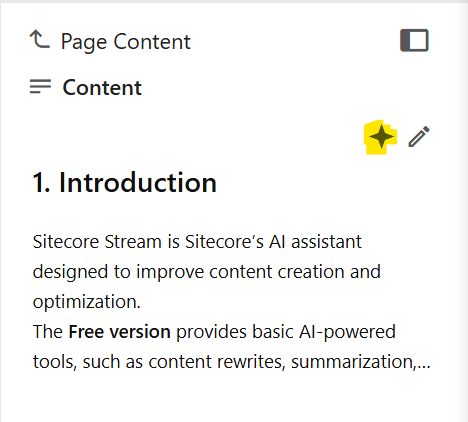
  3. Click onto the editable text fields. And on the right-hand side, the content tab will be displayed

  4. Click the AI icon 


Using optimize content

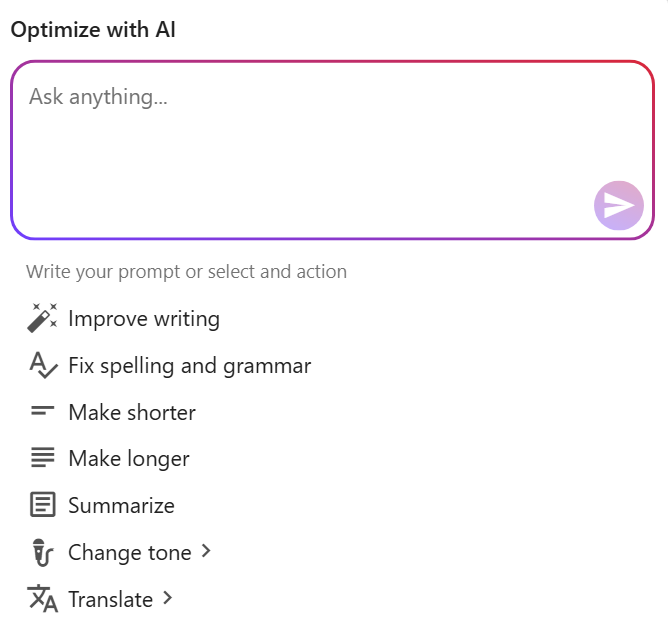
The Optimize content panel allows you to apply AI to any text field.

2.1 Available options

  • Custom prompt: using your own prompt to optimize tailored to your needs

  • Improve writing: rephrases the text with better flow

  • Fix spelling and grammar: correct spellings and grammars

  • Make shorter: shorten text while keeping meaning

  • Make longer: makes the content longer / more detailed

  • Summarize: provide a summary of your text

  • Change tone: adjusts tone (e.g. casual, formal, engaging)

  • Translate: translates into another language (The language needs to already be available on your site)


2.2 Workflow example

  1. Select a text field 

  2. Click AI icon.

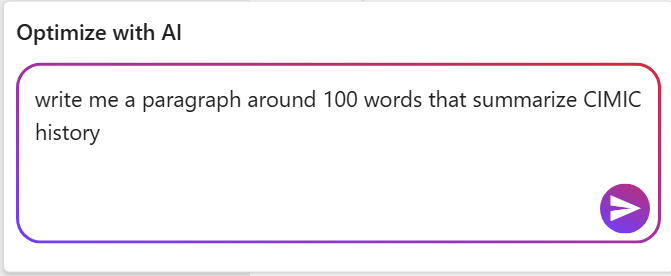
  3. Choose Custom prompt → Write a paragraph in around 100 words that summarise CIMIC's history.

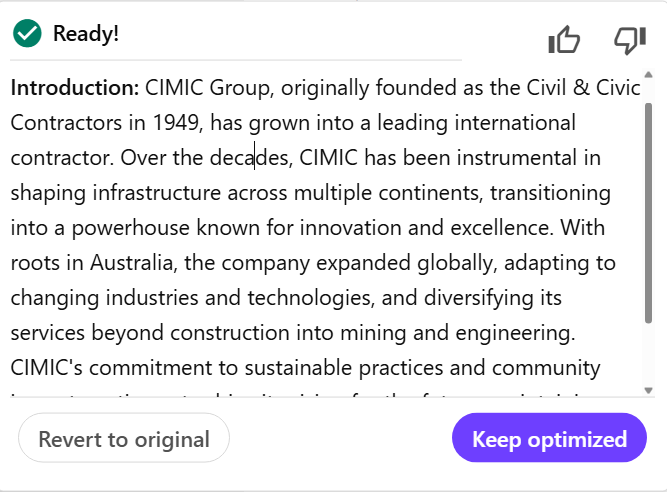
  4. Review AI’s suggestion:

  5. Accept or reject the suggestion.

 Checkpoint: Confirm the new AI-generated text appears in the field.


Managing AI suggestions

  • Keep optimized → replaces the text in the field

  • Revert to original → keeps the original text

  • You can also manually edit AI response after accept the changes


Best practices

  • Be specific in prompts: e.g. “rewrite in a friendly tone under 20 words”

  • Always review AI output for accuracy and compliance

  • Use translations carefully - verify meaning with a native speaker

  • Keep a “prompt library” of effective instructions your team can reus

CIMIC
Generating sustainable returns by delivering projects for our clients while providing safe, rewarding and fulfilling careers for our people.
Contact us
  • Enquiries
    • Privacy Policy
      • Privacy Collection Statement
        • Ethics line
          • Cyber fraud
            Latest news
            • Subscribe to our newsletter
              Work with us
              • Job search
                • Graduate program
                  • Undergraduate program
                    • Suppliers and partners
                      Copyright © 2026 CIMIC Group