
Images and videos must be uploaded to the media library before they can be used on the CIMIC or OpCo websites.
- In Pages, navigate to the page you want to add media to.
Select the component you wish to add media to and click the + sign in the taskbar and click Select media.

You can upload images and videos using the arrow. Refresh the pop-up window, click on the photo or video you want to add, and select Add selected.
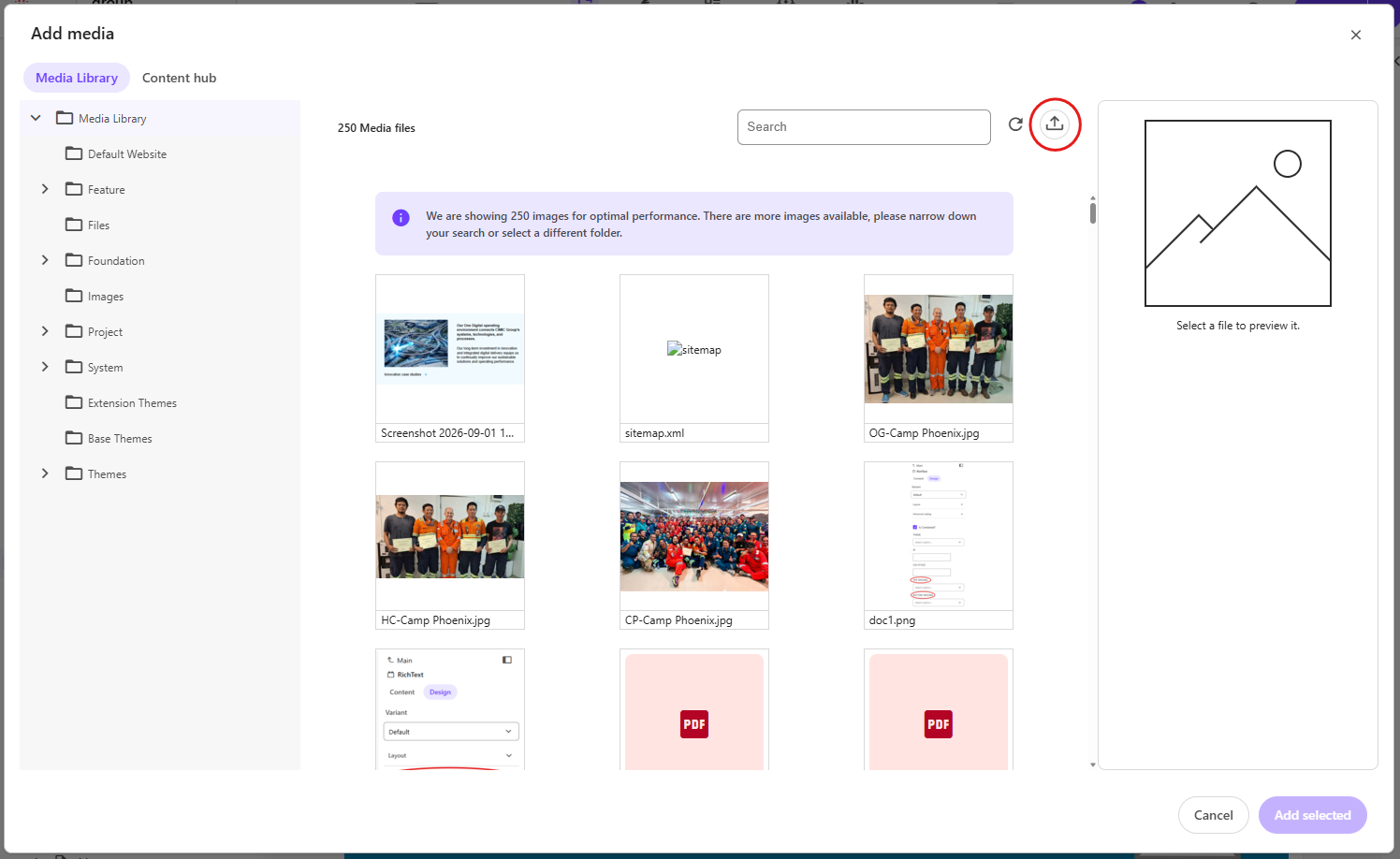
- All images and videos will be uploaded into the Images folder in the general media library in Content Editor, and it is important to sort your files to their appropriate folders under each OpCo to maintain filing cleanliness.
- Publish the page.