
Add a social link
- In Content Editor, navigate to Site [Node] / Data [Node] / Social [Node].
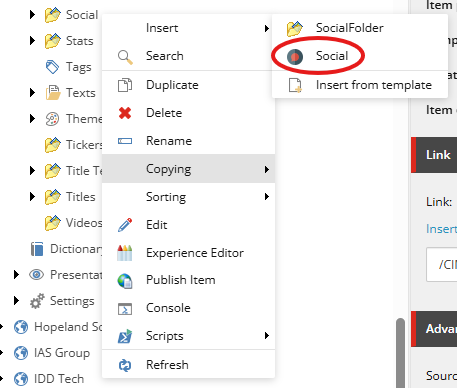
Right-mouse click on Social and select Insert > Social.
In the Message dialogue window, enter a name for the social link and click OK.
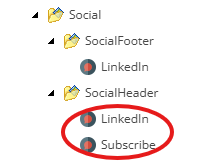
- Edit the following fields:
Field Name | Description |
Social Type | Select the social platform from the dropdown list, e.g. LinkedIn. |
Link | Enter the full URL for destination, e.g. https://www.linkedin.com/company/cimic-group-limited Note: if you decided to use the social link as an internal link then you will have to input in the full URL of an internal page, e.g. https://www.cpbcon.com.au/contact-us |
Label | This field is ONLY to be use on header to create a custom link instead of a social link, e.g. Contact us, Subscribe, Careers, etc |
5. Save and publish your changes.
Delete a social link
In Content Editor, navigate to Site [Node] / Data [Node] / Social [Node] / Social [Item], e.g. CPB / Data / Social / Facebook.
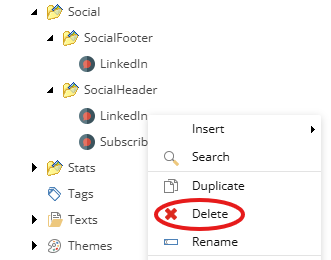
- Right-mouse click on <social item> and select Delete.
- Publish the Social folder.
- From the Sitecore ribbon, click Publish.
- Click on the Publish dropdown arrow and select Publish item.
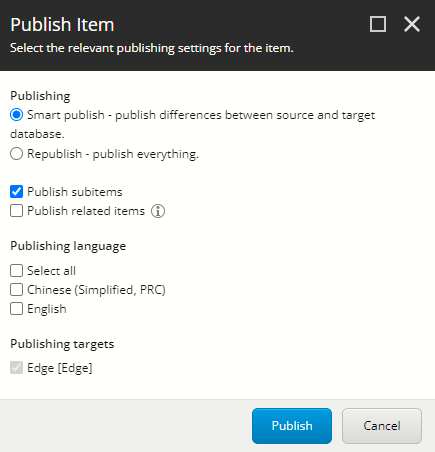
Check your settings match the screenshot and click Publish.
Re-order social links
- In Content Editor, navigate to Site [Node] / Data [Node] / Social [Node] / Social [Item].
Right-mouse click on <social item>, select Sorting and click the sort option.
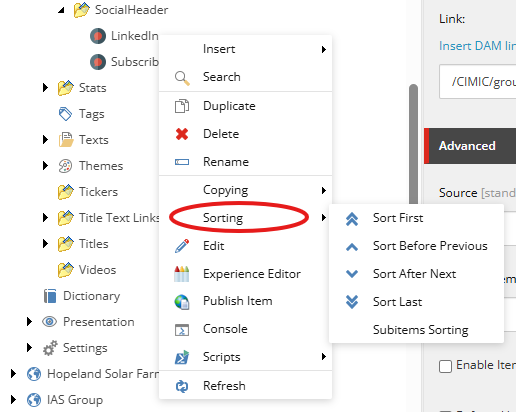
- Publish the Social folder.
- From the Sitecore ribbon, click Publish.
- Click on the Publish dropdown arrow and select Publish item.
Check your settings match the screenshot and click Publish.