
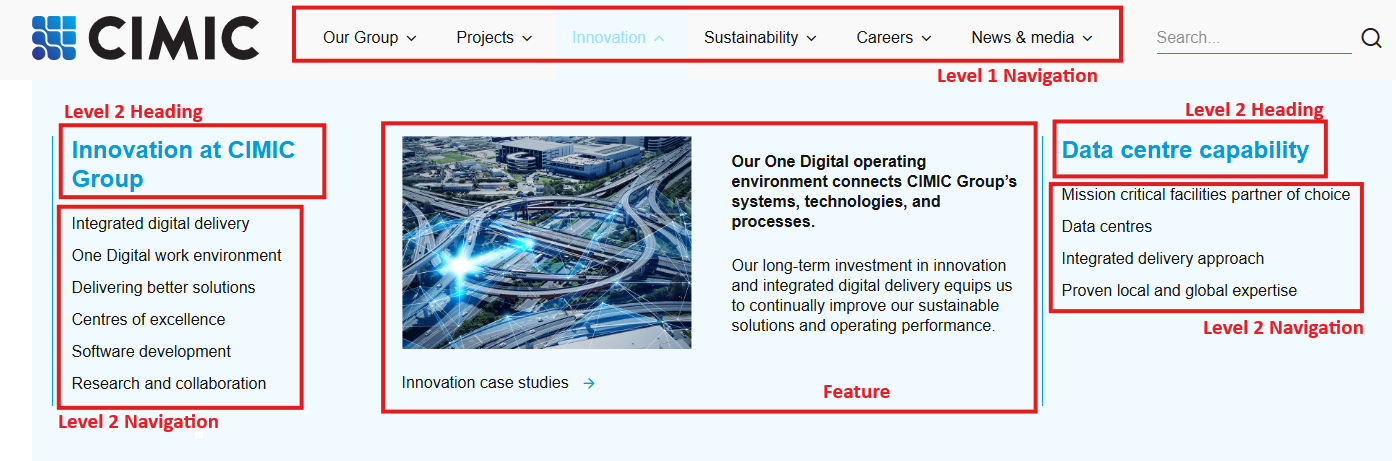
The navigation is made up of:
- Level 1 navigation
- Level 2 heading
- Level 2 navigation
- Feature
| Note: Creating a new level 1 or 2 page doesn’t automatically make it appear in the navigation. |
Level 1 navigation
To create a level 1 navigation item:
- In Content Editor, navigate to Site [Node] / Data [Node] / Header navigation [Node], e.g. CPB / Data / Header navigation.
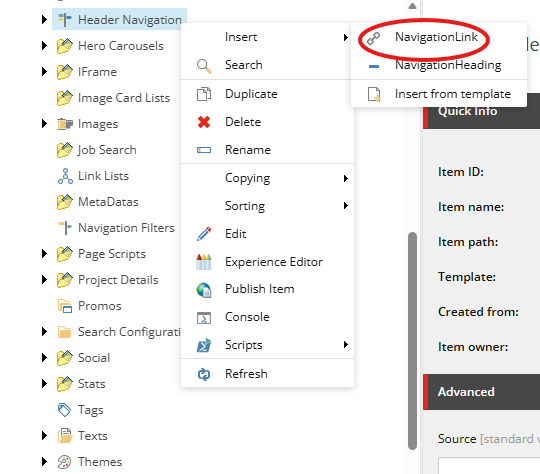
Right-mouse click on Header navigation and select Insert > NavigationLink.
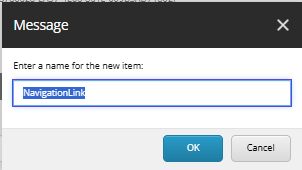
In the Message dialogue window, enter a name for the navigation link, and click OK.
- For the new level 1 navigation item:
- click Insert link.
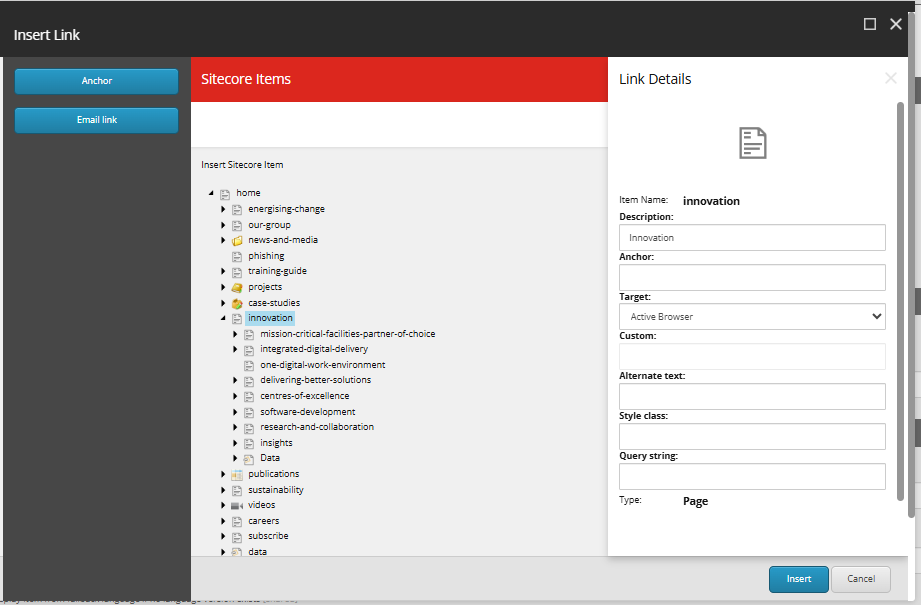
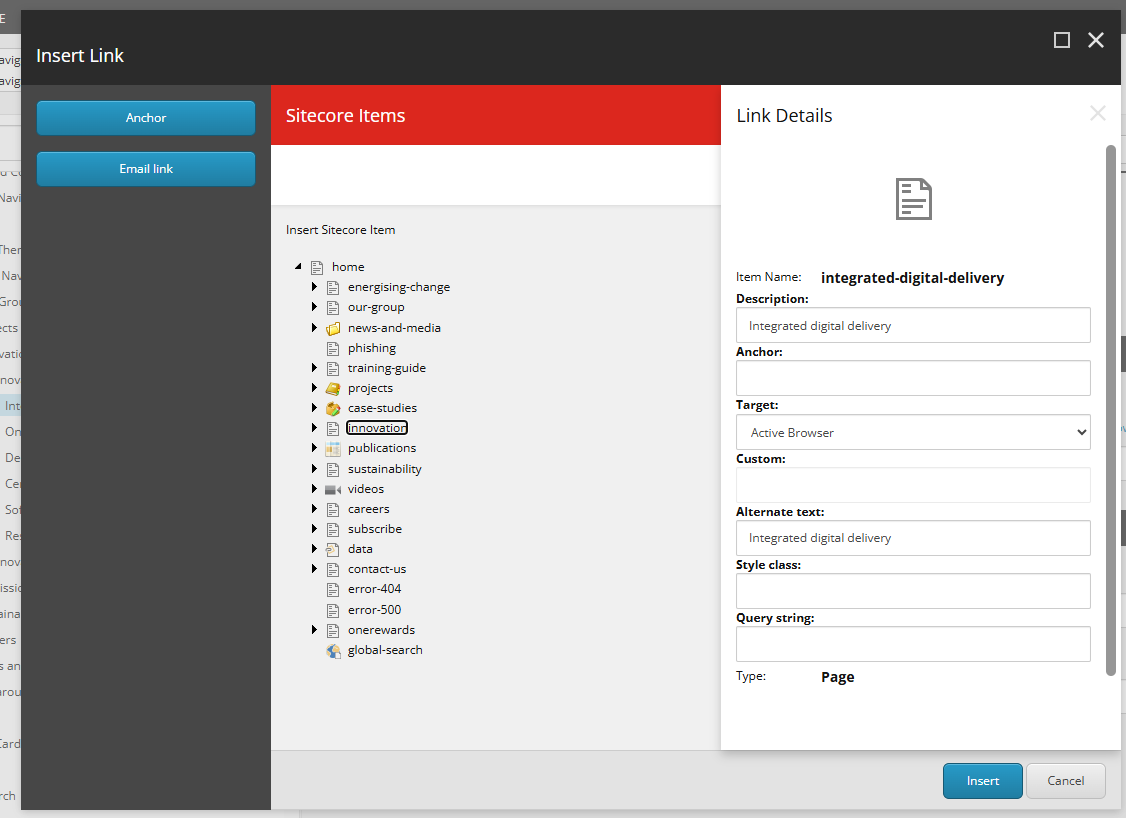
In the Insert link dialogue window, navigate to the page you want to link to, and click on it once to select it. The Link details panel will appear on the right. Enter the link label in the Description field and click Insert.
- Save and publish your changes.
Level 2 heading
Level 2 headings are used to group level 2 navigation links in the mega nav. To create a level 2 heading:
- In Content Editor, navigate to Site [Node] / Data [Node] / Header navigation [Node] / Level 1 navigation link [Node], e.g. CPB / Data / Header navigation / our group.
Right-mouse click on the level 1 navigation link and select Insert > NavigationHeading.
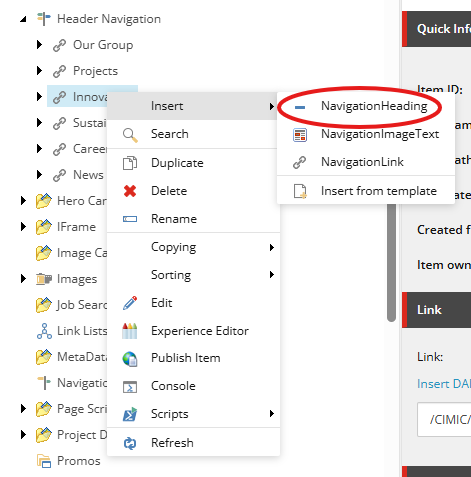
In the Message dialogue window, enter a name for the level 2 heading, and click OK.
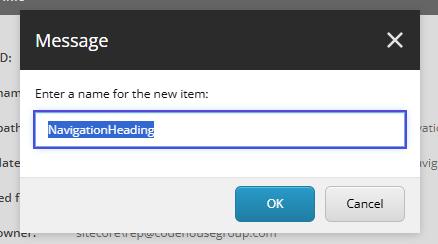
- Enter a heading in the Header field and click OK.
- Save and publish your changes.
Level 2 navigation
Level 2 navigation items are created under level 2 headings. To create a level 2 navigation item:
- In Content Editor, navigate to Site [Node] / Data [Node] / Header navigation [Node] / Level 1 navigation link [Node] / Level 2 heading [Node], e.g. CPB / Data / Header navigation / our group / a trusted partner.
Right-mouse click on the level 2 heading and select Insert > NavigationLink.
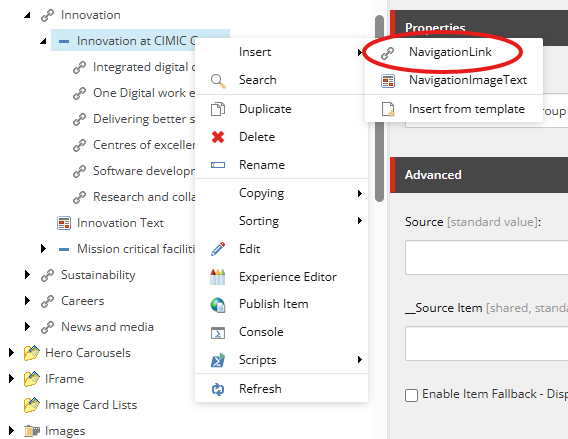
In the Message dialogue window, enter a name for the navigation link, and click OK.
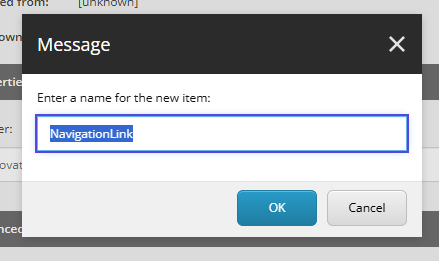
- For the new level 2 navigation item:
click Insert link

- In the Insert link dialogue window, navigate to the page you want to link to, and click on it once to select it. The Link details panel will appear on the right. Enter the link label in the Description field and click Insert.
5. Save and publish your changes.
Feature
Features are optional and appear in the far-left column in the mega navigation. Each level 1 navigation item can have its own feature. To create a feature:
- In Content Editor, navigate to Site [Node] / Data [Node] / Header navigation [Node] / Level 1 navigation link [Node], e.g. CPB / Data / Header navigation / our group.
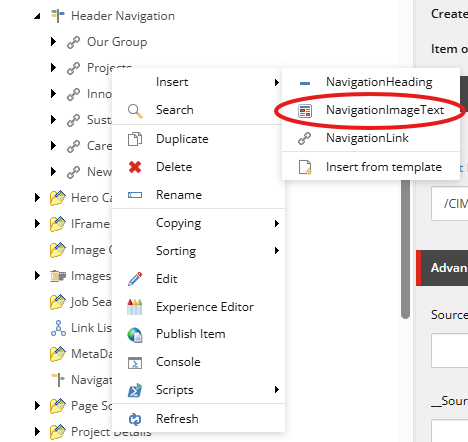
Right-mouse click on the level 1 navigation link and select Insert > NavigationImageText.
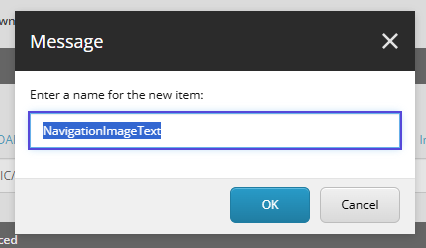
In the Message dialogue window, enter a name for the feature, and click OK.
- Fill in the following fields for the new feature:
Field name | Description |
Image |
|
Title |
|
Description |
|
Link |
|
5. Save and publish your changes.