
Jotforms can send a response email to a user who submits a form and notify a nominated email address each time a form is submitted.
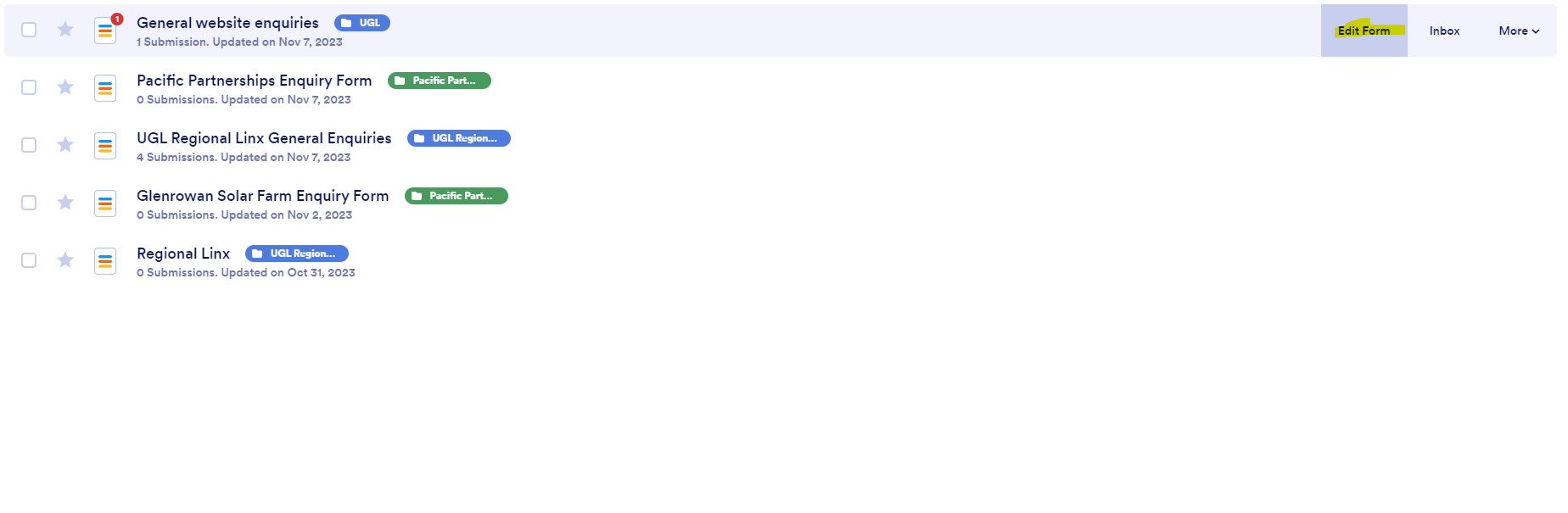
Navigate to the form you want to create the response and notification email for and click Edit form.
Navigate to Settings > Emails.
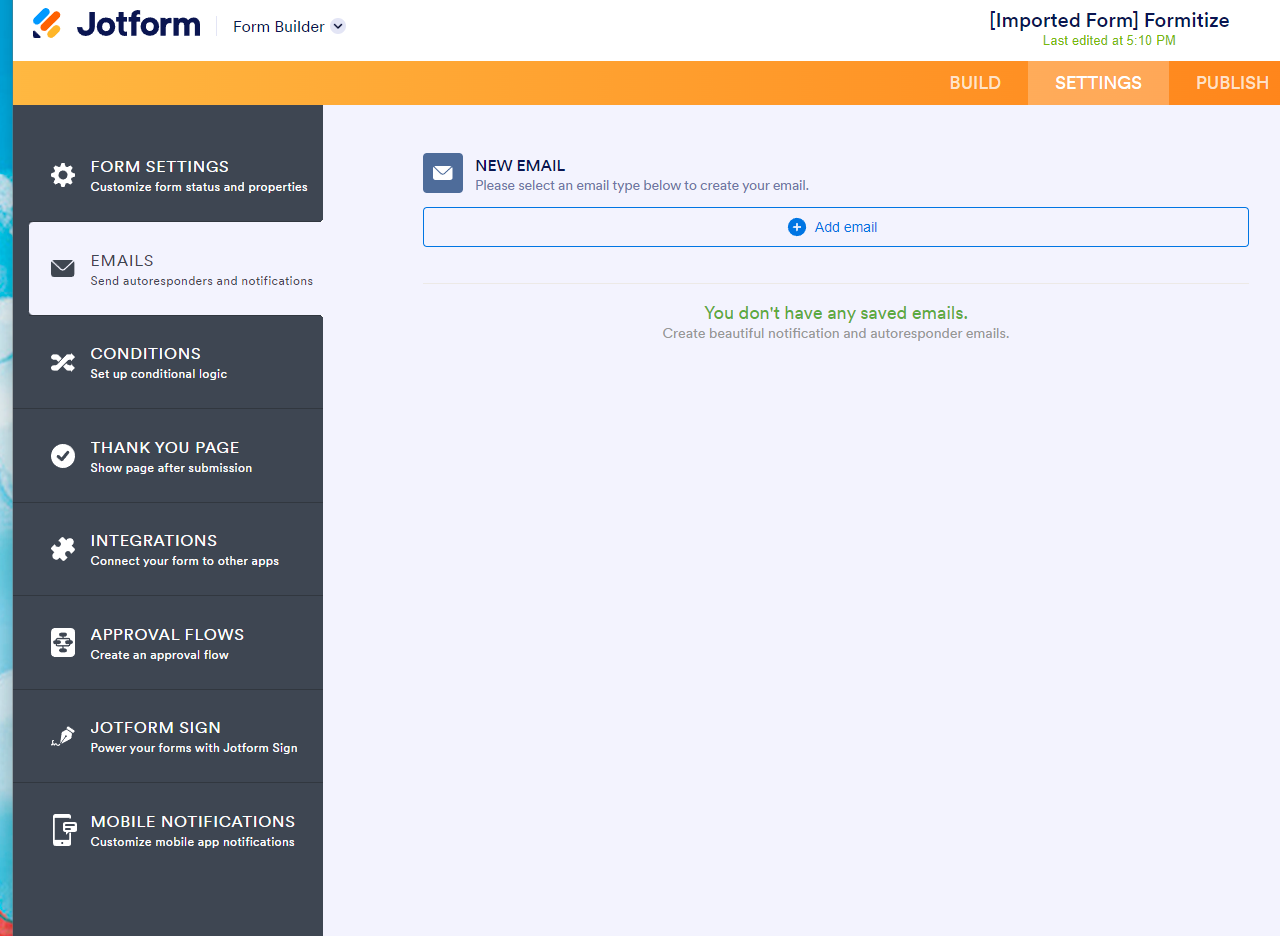
Click Add email and select either Notification email or Autoresponder email.
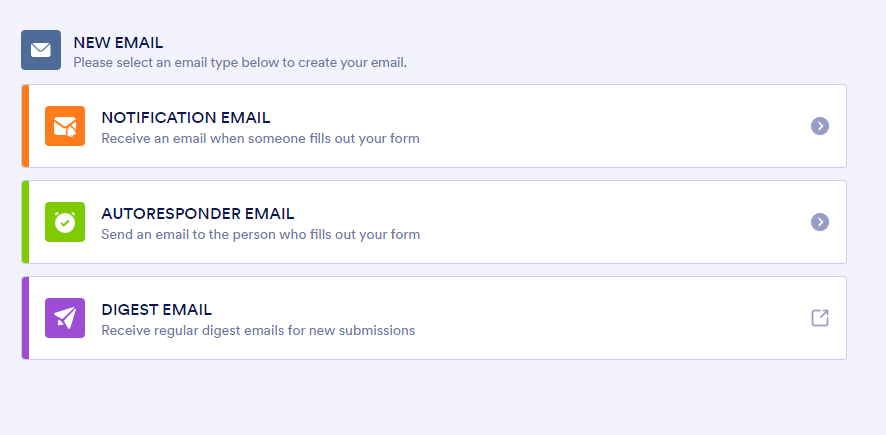
Notification email is the email sent to a nominated email address to notify recipients when a form is submitted.
Autoresponder email is the email sent to a user who submits a form, acknowledging that the form has been submitted.
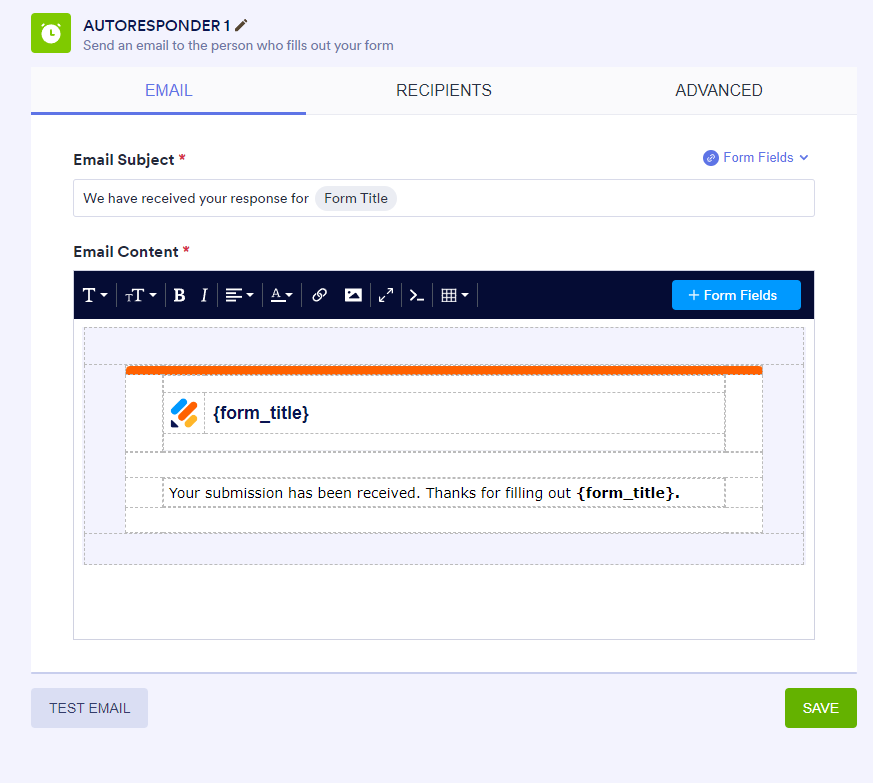
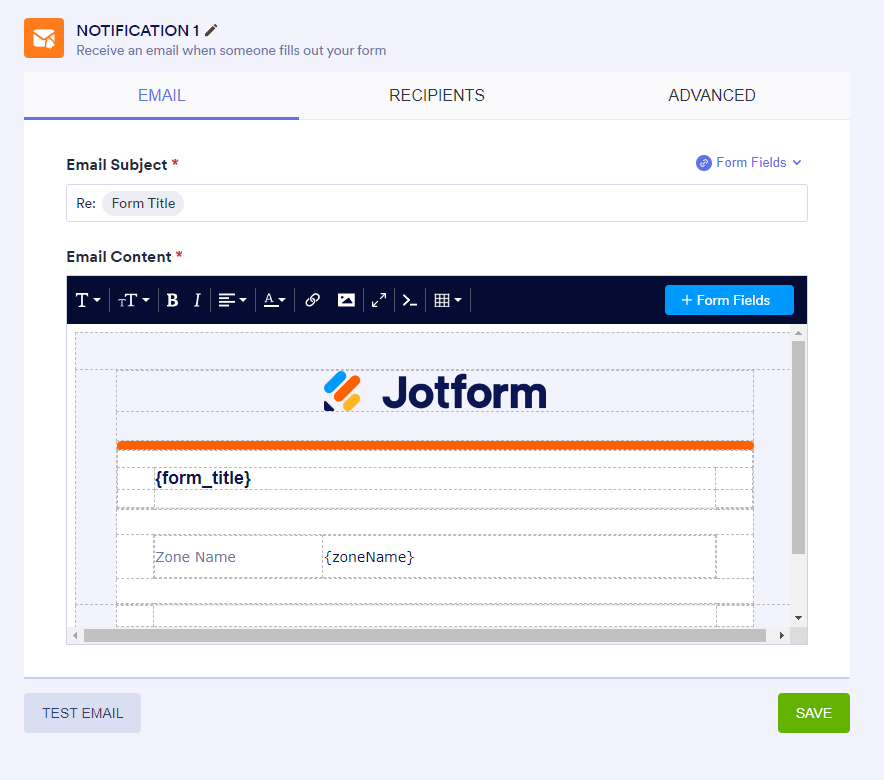
- Both email types contain the same three tabs: Email, Recipients, and Advanced.
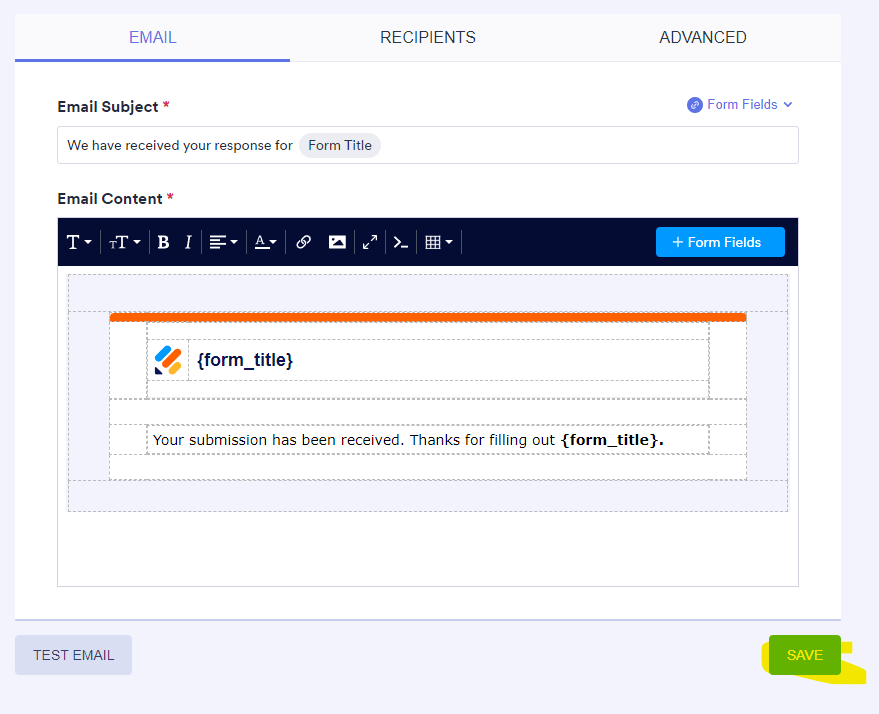
- The Email tab is used to edit the content of the email.
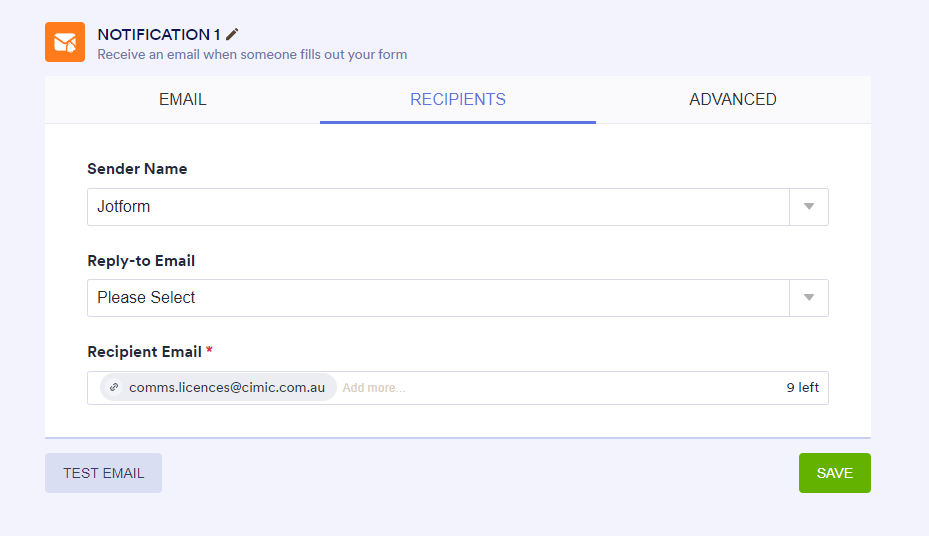
The Recipients tab for a Notification email is where you can edit the sender's name, reply-to email address (optional), and recipient email address.
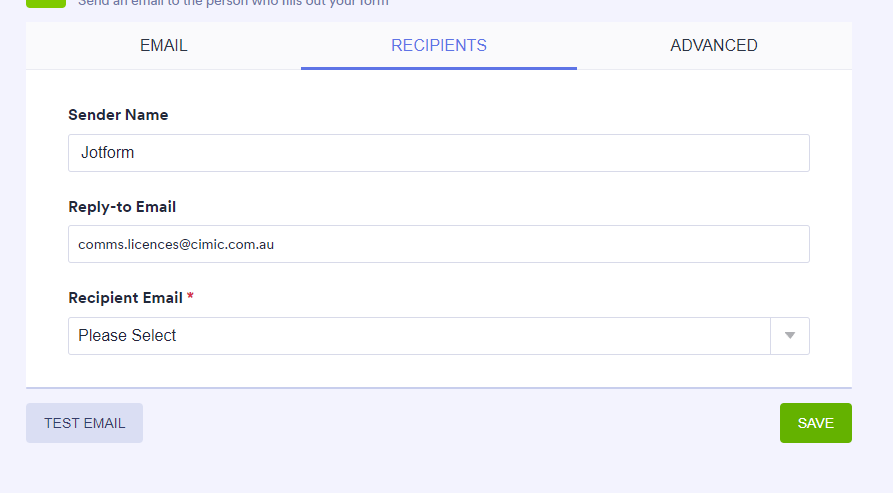
The Recipients tab for an Autoresponder Email is where you can edit the sender's name, reply-to email address (optional), and recipient email address. This field is mapped to one of the form's email fields and determines where the autoresponder email will be sent after submission.
The Advanced tab contains additional email configuration options.
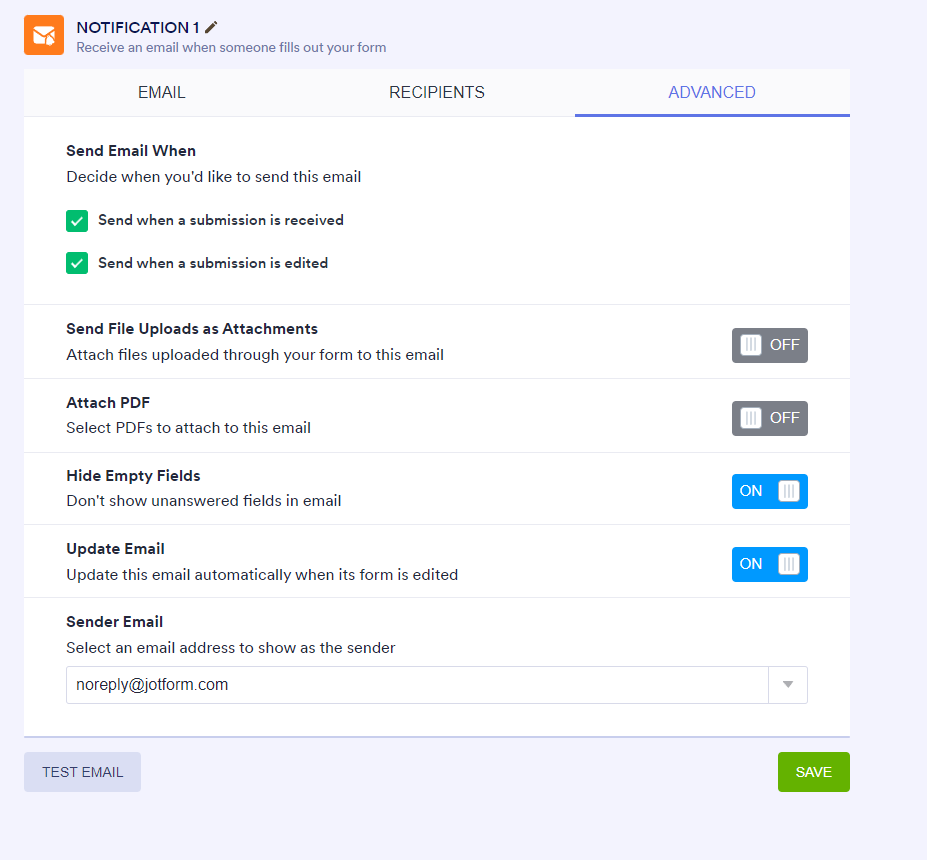
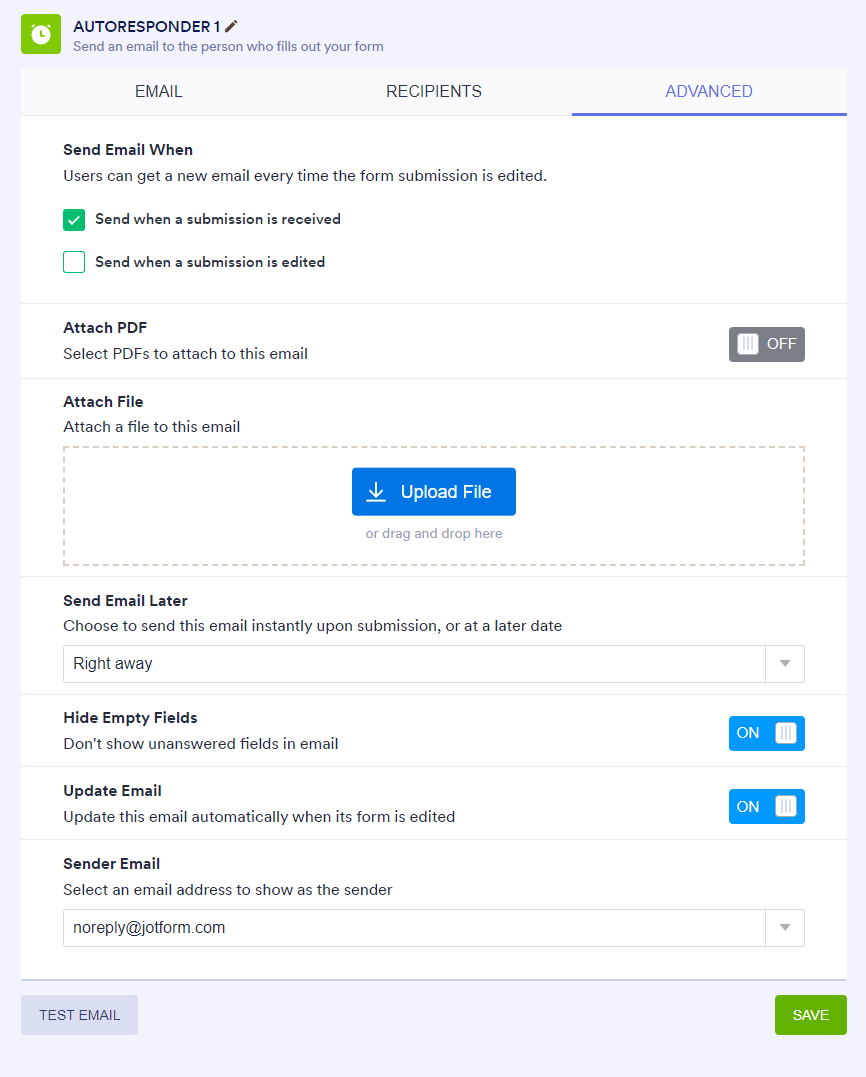
Here are the available options:
- Send email when – Configures the trigger for sending the email.
- PDF attachment – Adds PDF documents to the email.
- Attach a file – Attaches a file to the email.
- Send emails later – Delays or schedules the email delivery.
- Hide empty fields – Excludes empty fields from the email when enabled.
- Update email – When disabled, the email template ignores changes made to the form.
- Sender email — Send the email using your SMTP server instead of Jotform’s servers. To learn more, see Adding a Custom Sender Address and Setting Up SMTP.
After editing your emails, click Save.
To edit or delete an email that you have created, hover over the email and click the Pen icon to edit it or the Trash icon to remove it.
