
After creating your JotForm, you will need to embed the form into a Sitecore page.
- Create or locate the page where you want the form to appear in.
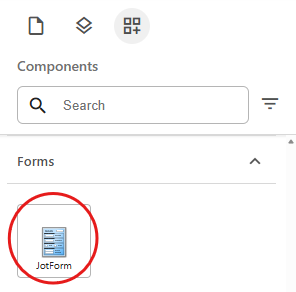
Navigate to Components > Forms > JotForm, then drag the component onto the page.
In the Assign content item window, click once on the last (if there are multiple) data folder in the tree to select it, and click + Create new.
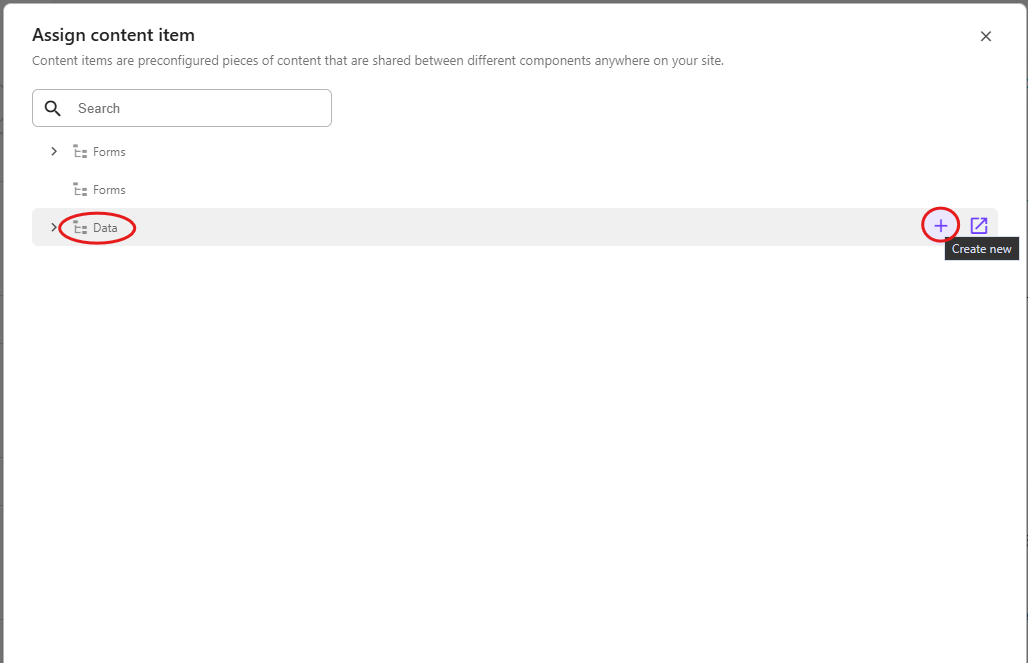
Note: You may see 3 data folders in the Assign content item window.
- First data folder: Site data. The data items in this folder are available for use on any page across your group site only.
- Second data folder: Shared data. The data items in this folder are available for use on any page across any group site.
- Third data folder: Local data. The data items in this folder are available for use on the current page only.
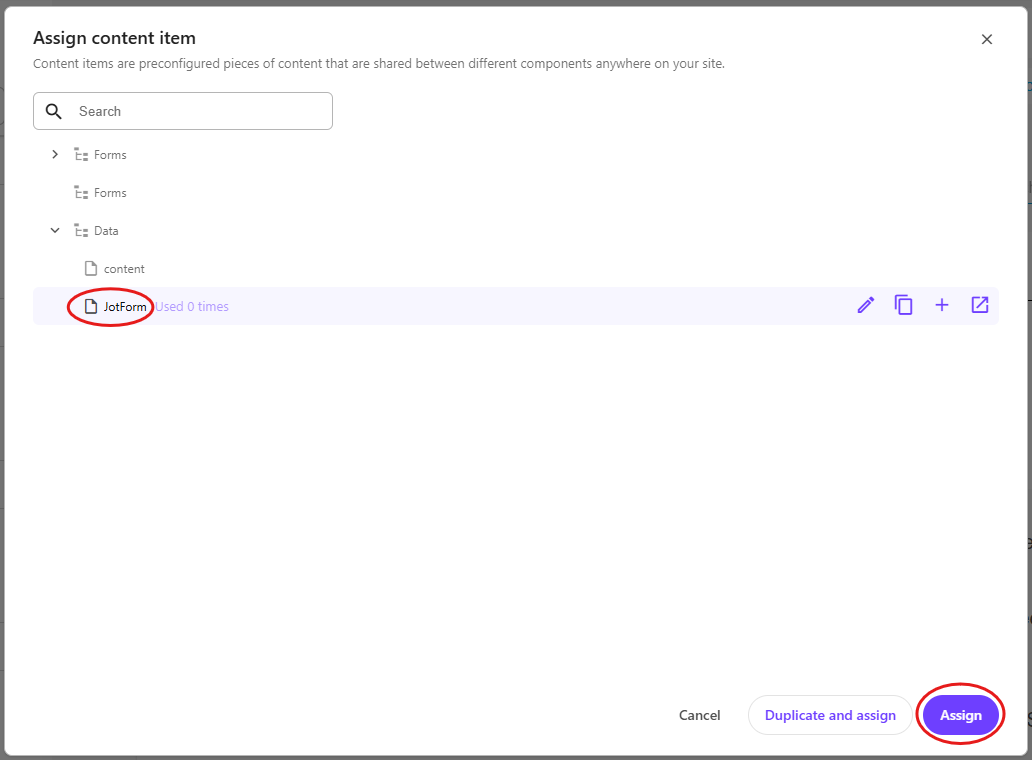
Click on JotForm to create a data source and type the name for the new content item without clicking on the data source itself. Press enter once you have finished typing the data source name and click Assign.
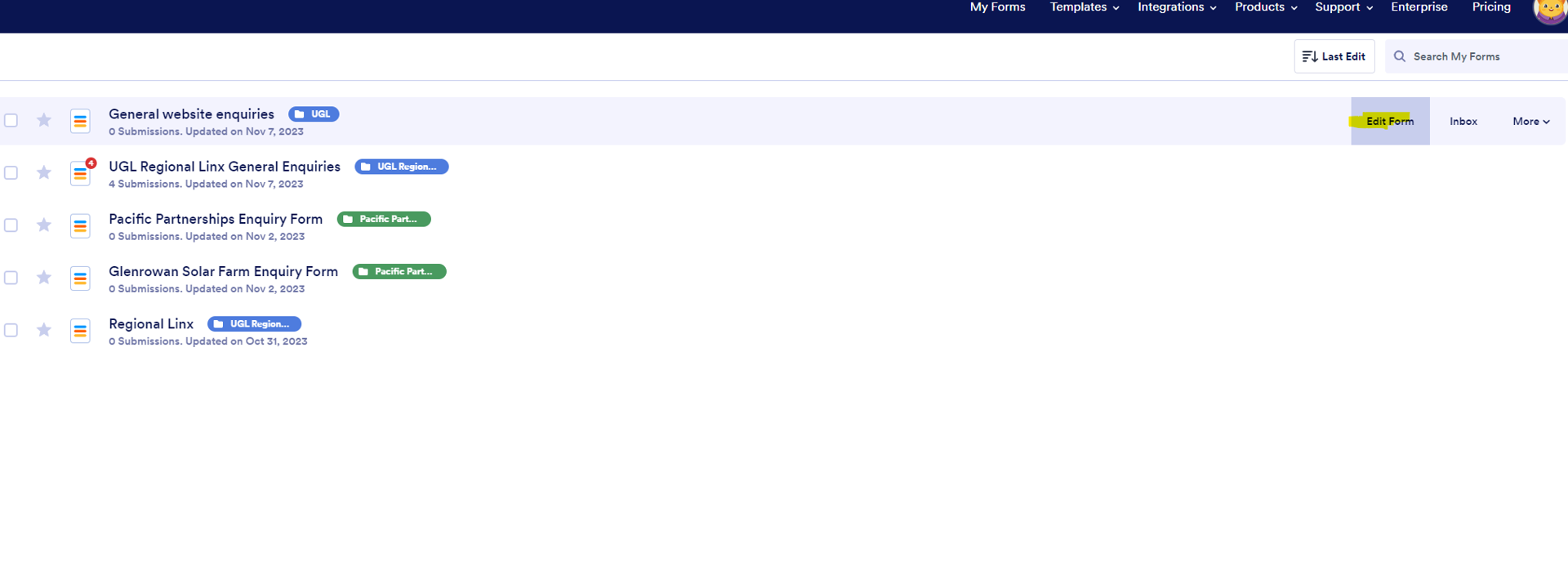
In JotForm, locate your form and click Edit Form.
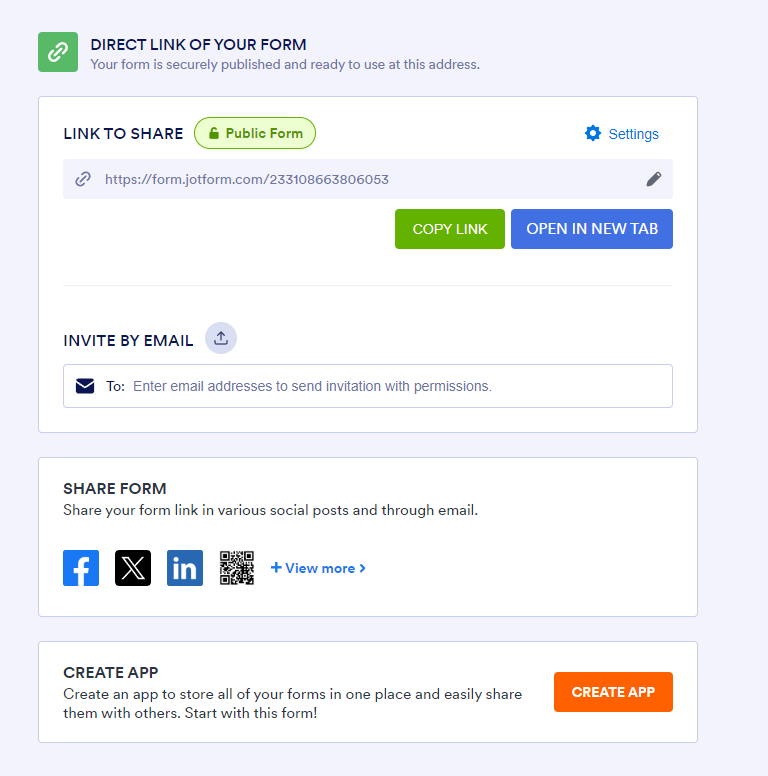
Navigate to Publish > Quick share and click the Copy link button under the Direct link of your form section. This will copy the URL required to embed the form into a Sitecore page.
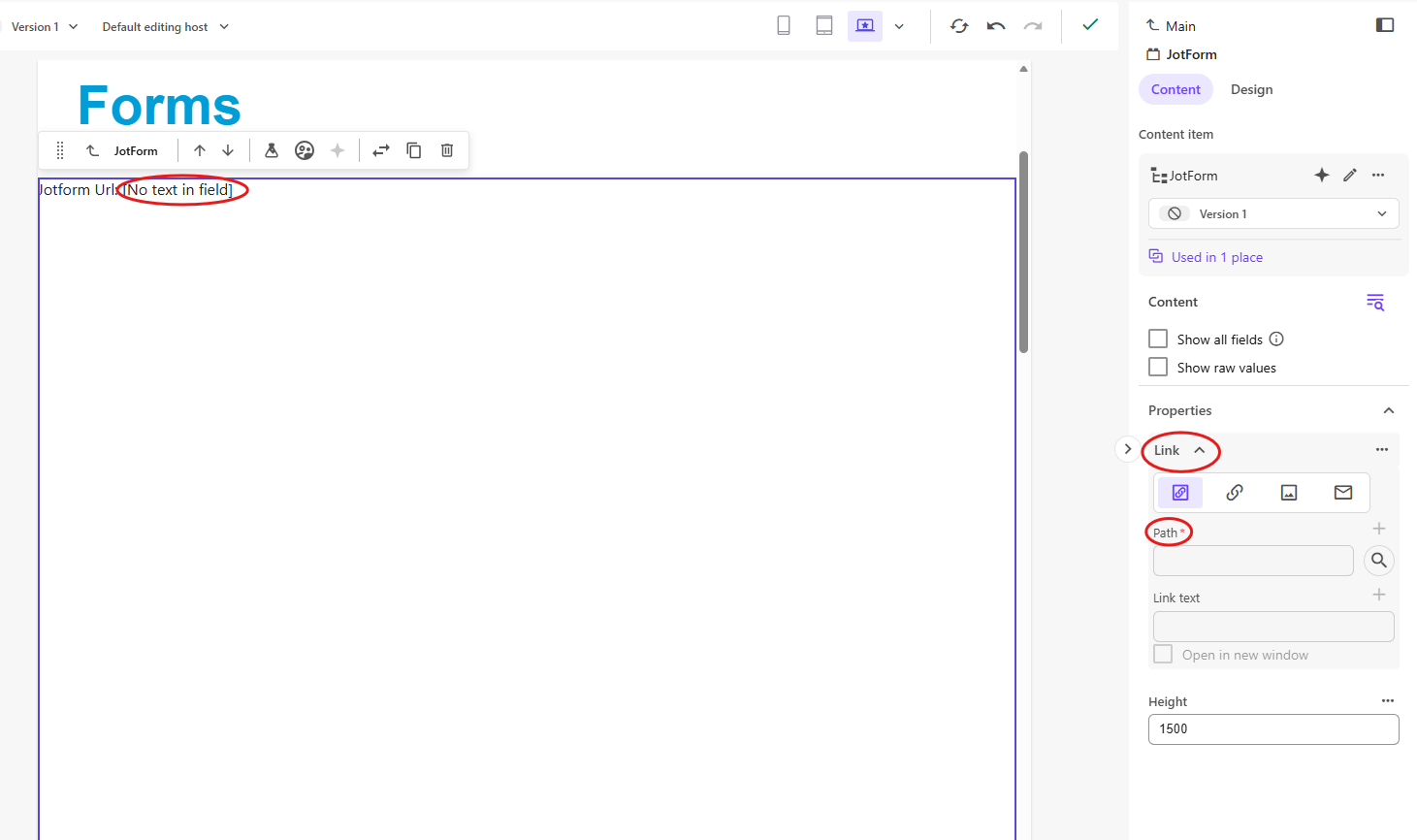
Return to the Sitecore page where you added the component. Click on the Link field within the component. Change the Link type to external, then paste the link you copied from JotForm into the URL field.
- Save your changes.
- Publish the page to make the form available on the live website.