
Forms can be used for a variety of purposes across the CIMIC website, including enquiries, registrations, feedback, and information requests.
The address for the Jotform tool is: https://www.jotform.com/
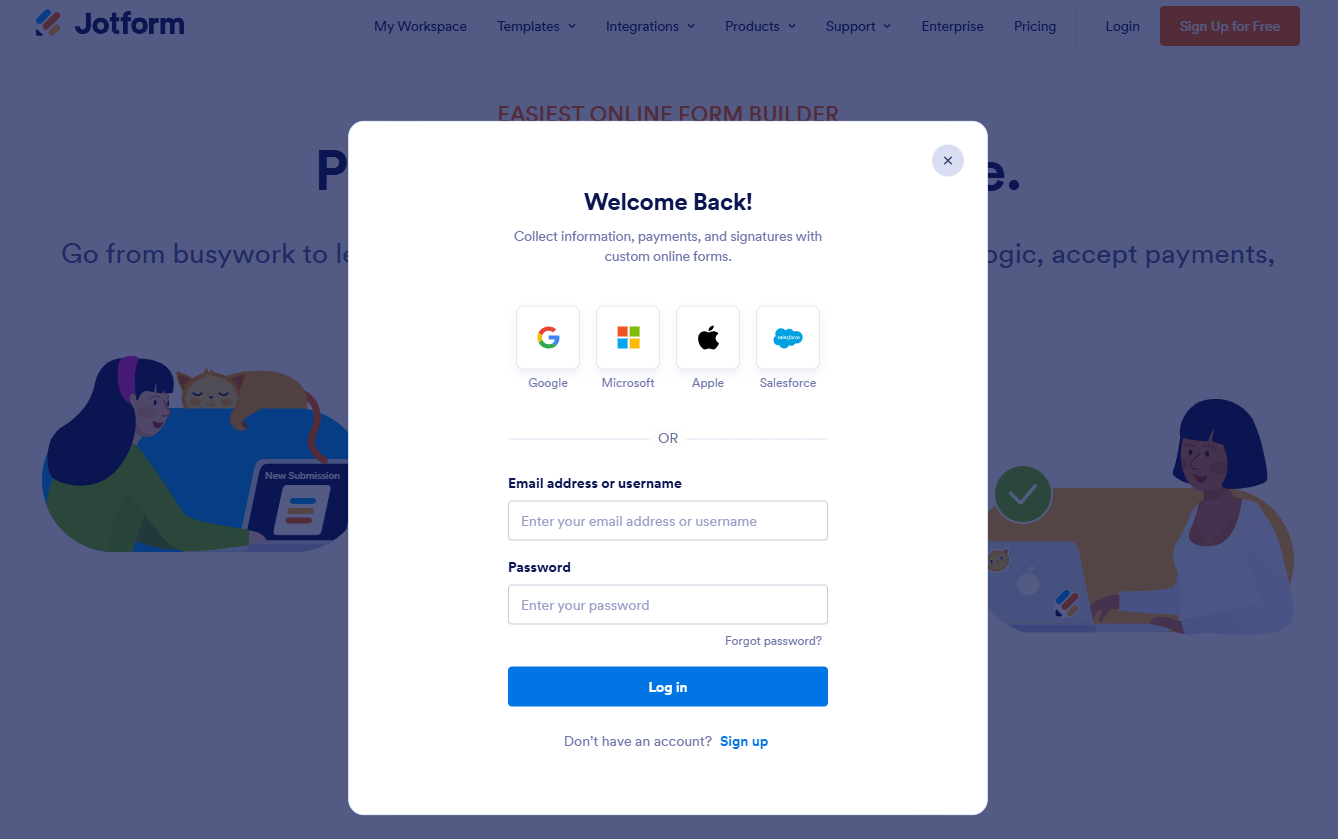
Navigate to the top right corner, click Login, and fill in the username and password with the provided credential.
Create and edit forms
- Log in to Jotform and navigate to your company's designated folder.
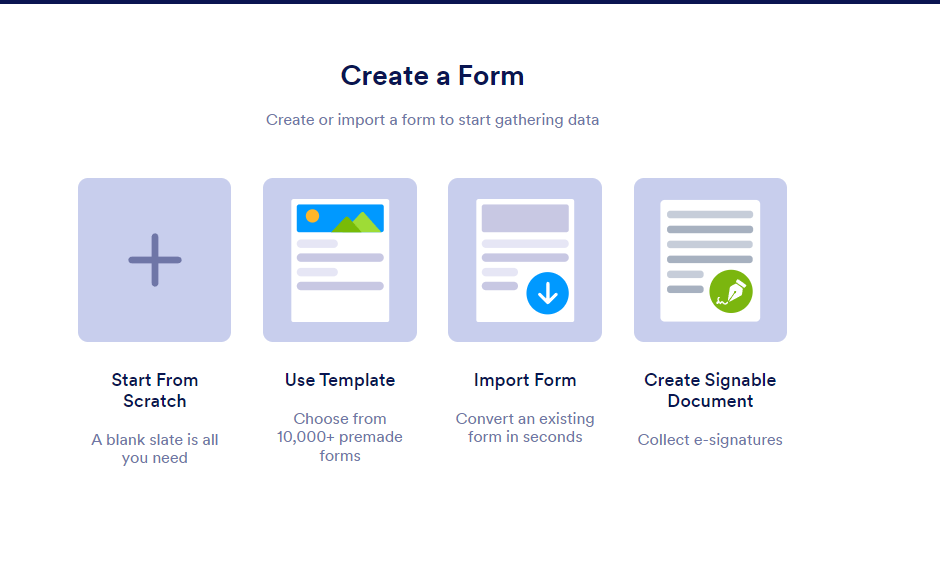
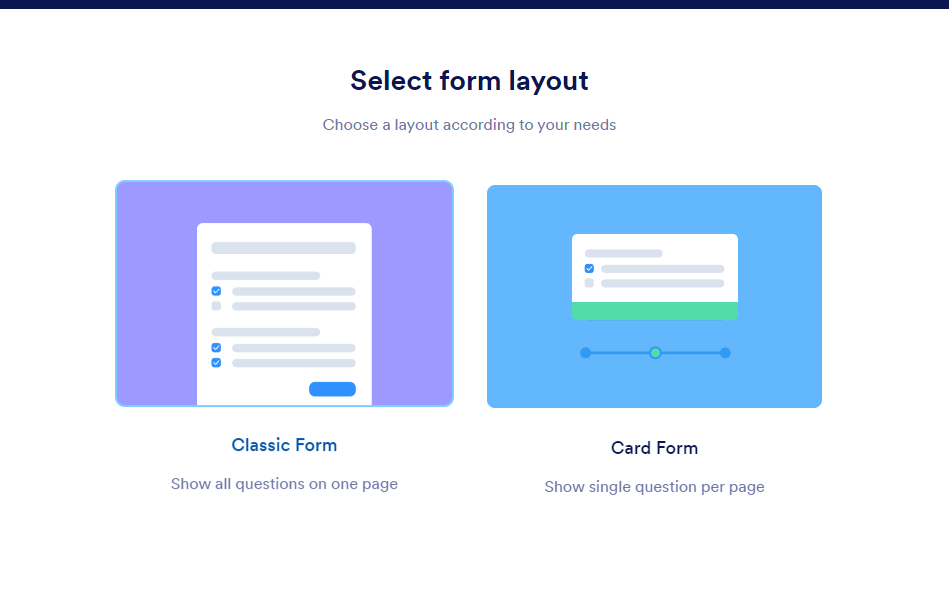
To create a new form, click Create form, select Start from scratch, and choose Classic form.
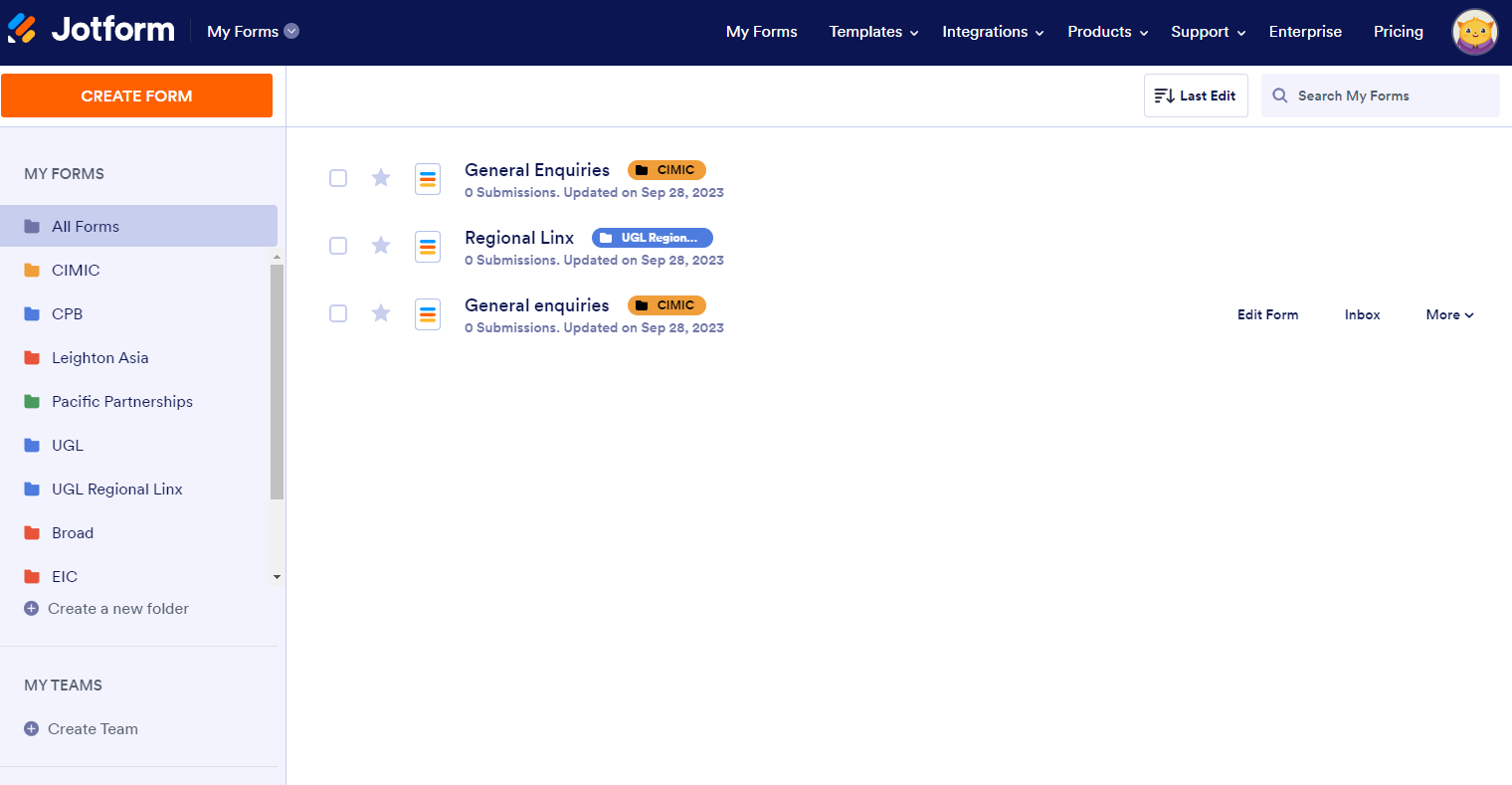
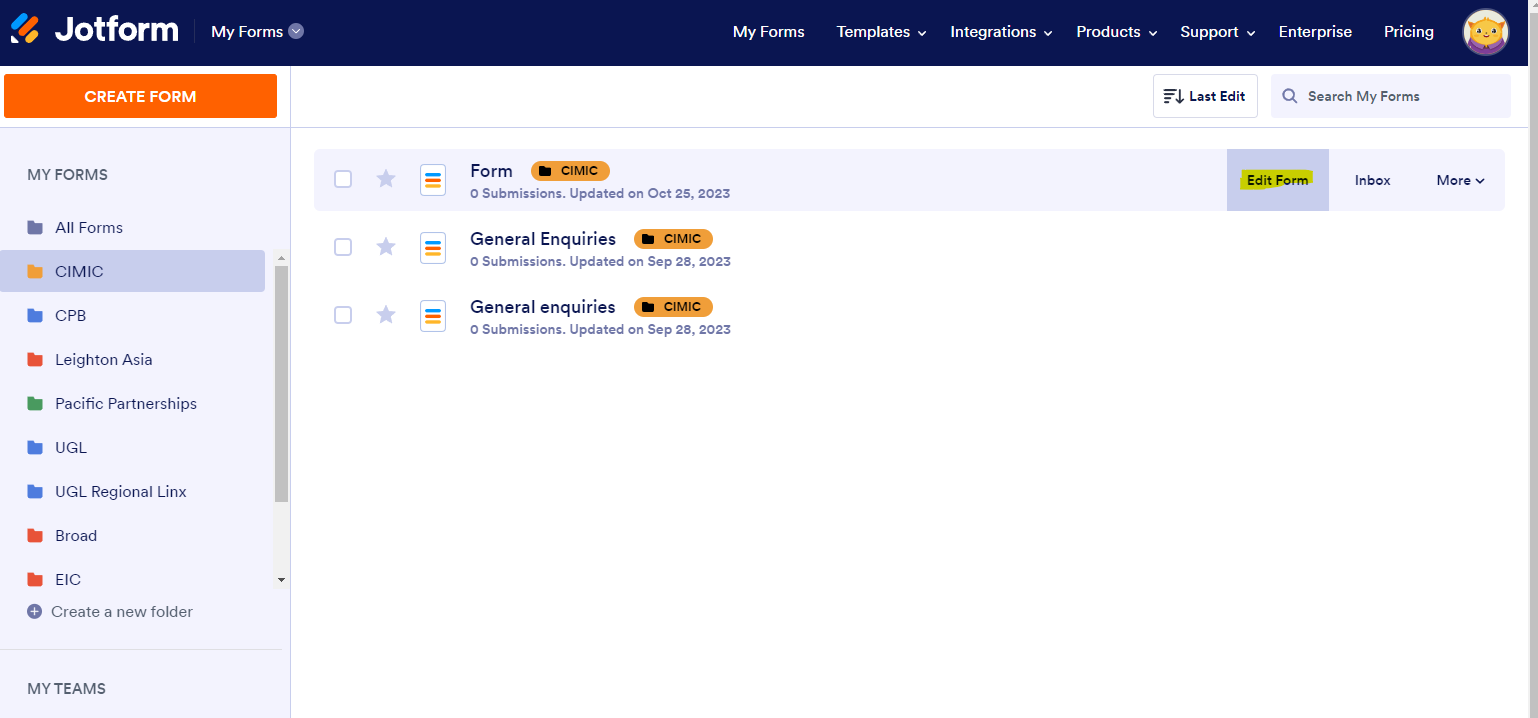
To edit an existing form, locate the form within your company's folder, hover over it, and click Edit form.
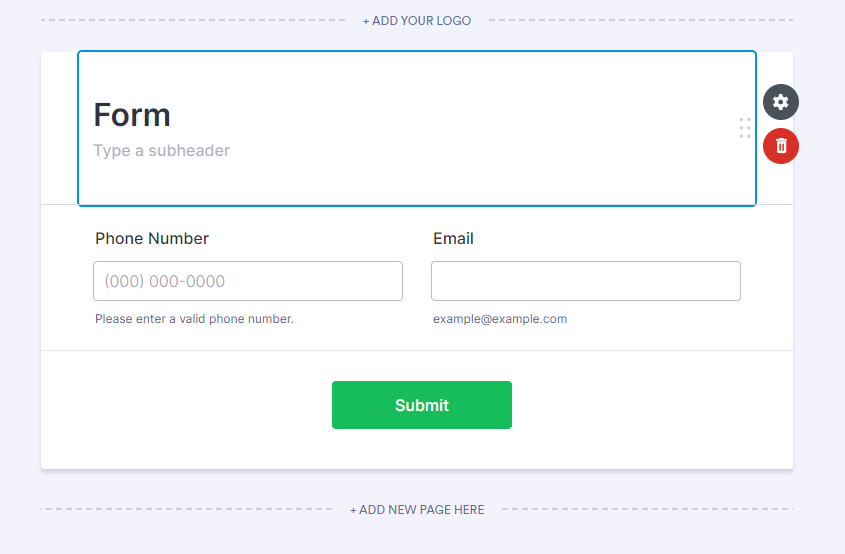
Update the form title by hovering over the default form name and entering the required title. If required, add a sub-header or supporting description beneath the title.
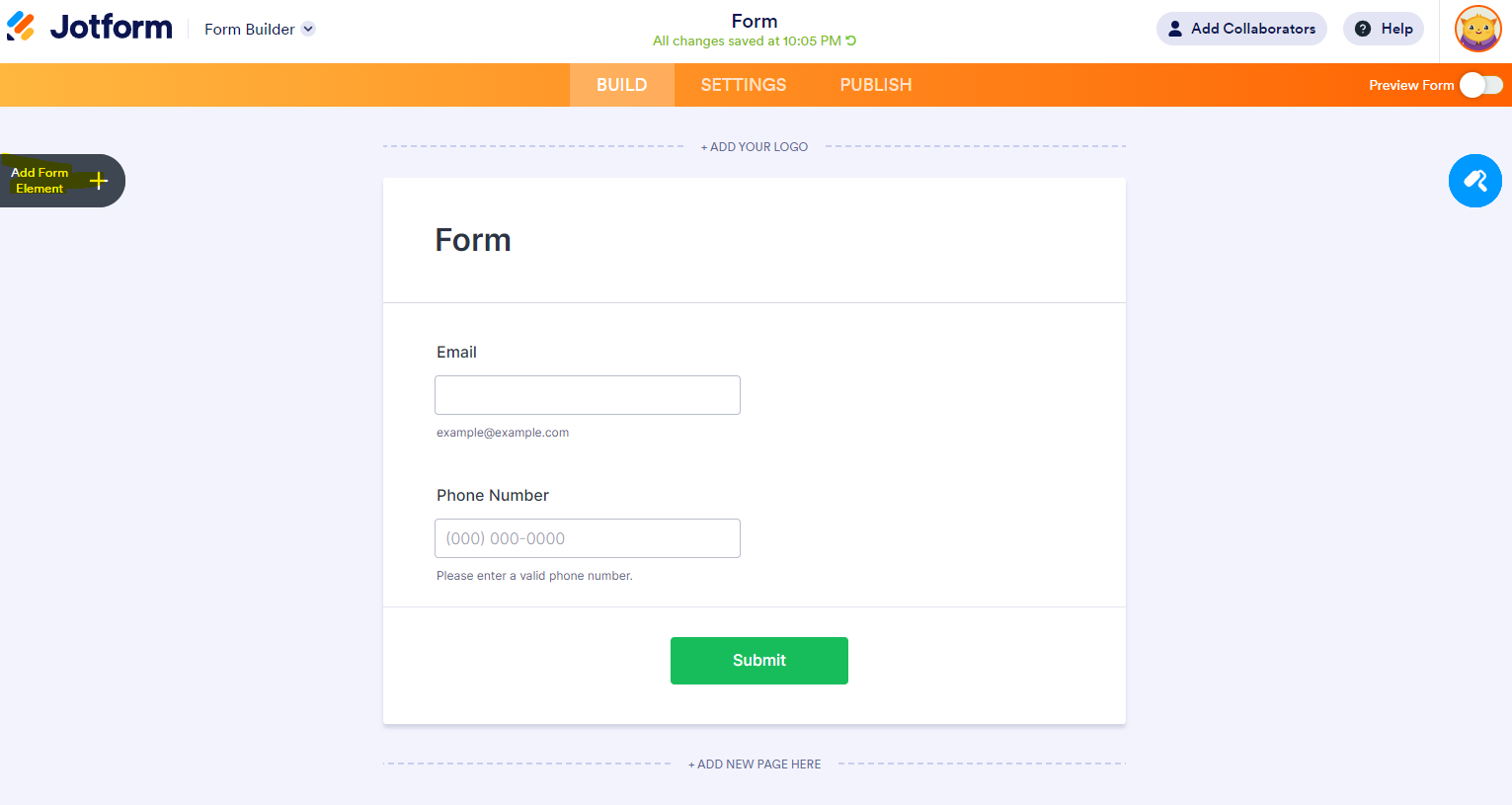
Click Add form element to display the available form elements and drag the required fields into the form.
- Continue building or updating the form by adding, removing, or rearranging fields as required. See the table below for commonly used elements.
Elements name | Description | Screenshot |
|---|---|---|
Heading | To have a heading for a section of the form |  |
Full Name | To input a person’s full name | 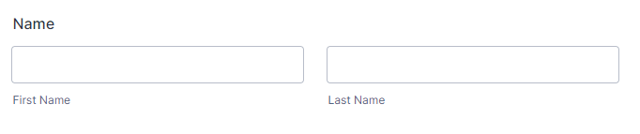 |
For emails input | 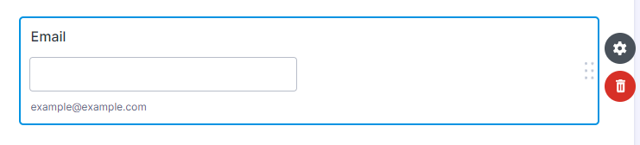 | |
Address | Multiple lines to input address | 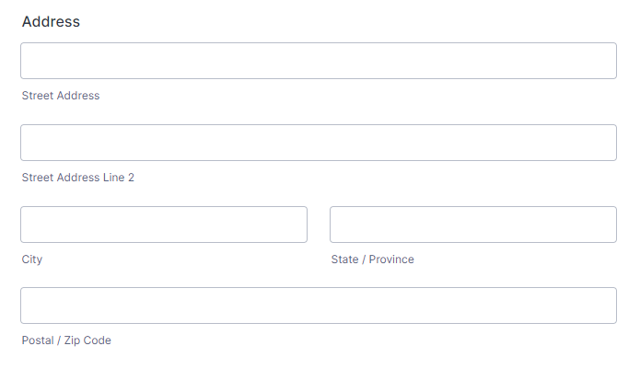 |
Phone | To enter phone number | 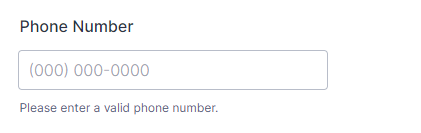 |
Date Picker | To pick a date | 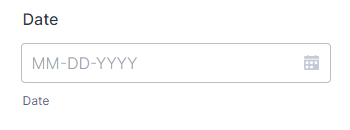 |
Short Text | input field for small amount text | 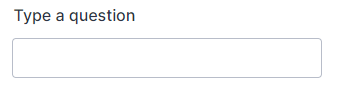 |
Long Text | input field for large amount of text | 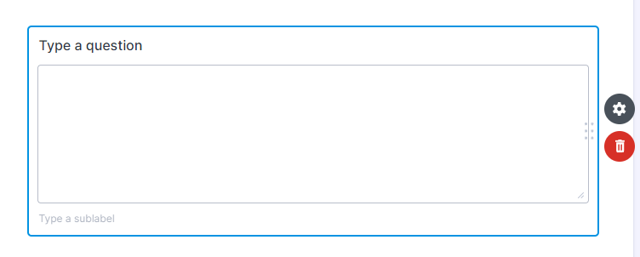 |
Paragraph | A full rich text editor for forms editor to display a paragraph | 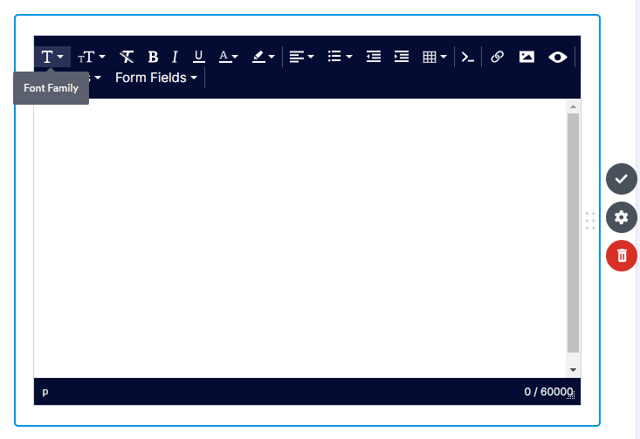 |
Drop Down | A dropdown selection | 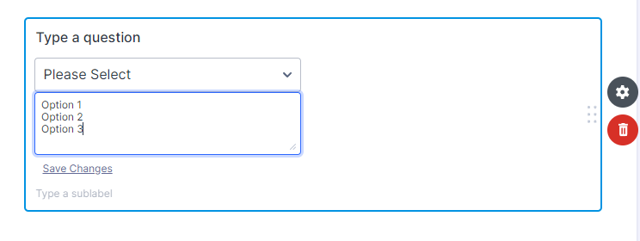 |
Single Choice | Single choice options where user can only select 1 option |  |
Multiple Choice | Multiple choice option where user can select multiple options |  |
Number | Input fields for number only, mainly use for age |  |
Captcha | Captcha for spam protection |  |
Submit | Submit button to submit the form |  |
7. To edit the properties of a field, hover over the field and click Properties. Use the panel on the right-hand side to update the field settings, such as:
a. Label
b. Placeholder text
c. Description
d. Required field settings
e. Validation rules
f. Default values
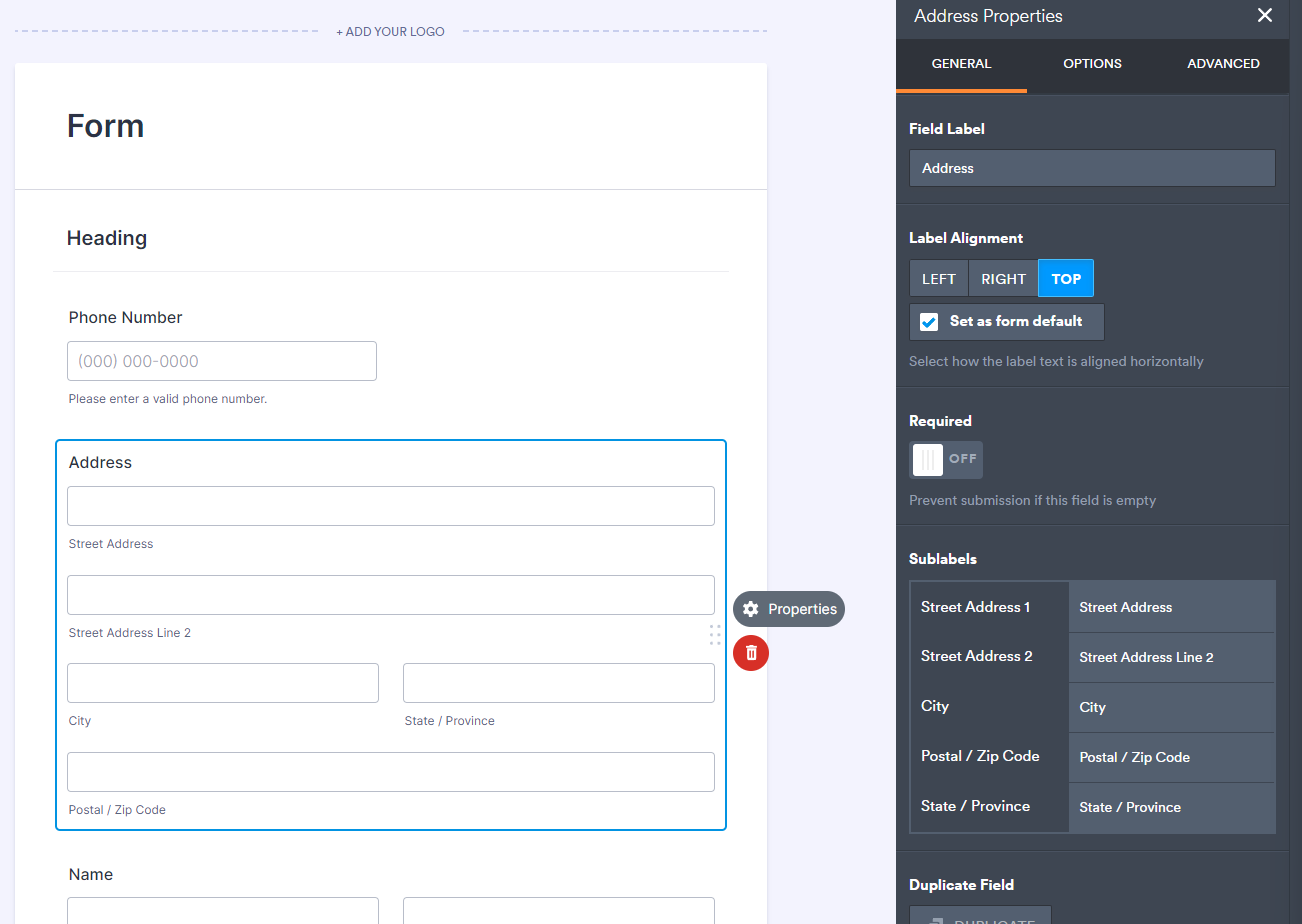
8. Repeat this process for each field until the form is configured as required.
9. Save your changes and perform a test submission before integrating the form into the website or making it available to users.
| Best Practice: Keep forms concise and only collect information that is necessary for the intended business purpose. Too many fields may discourage users from completing the form. |
How to put 2 fields on the same row
Right click on the field and select Shrink.
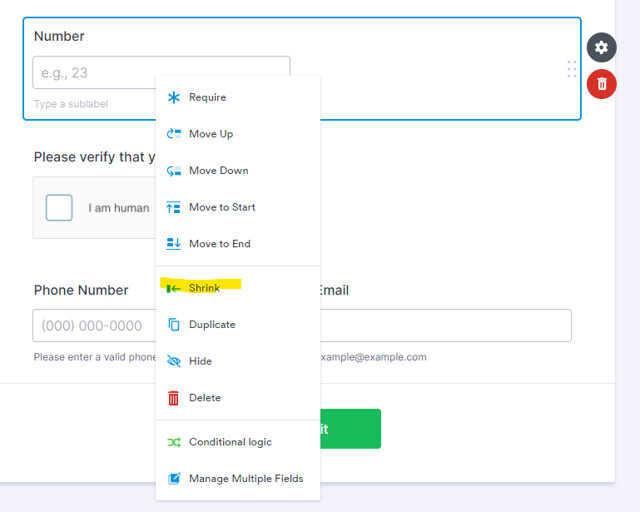
Replicate the same step on another field so both fields can be moved next to each other to be on the same row.
